Hi, this is CoinFirstStep. If you want to set up Binance 2FA with an authenticator app, this guide walks you through it step by step.
The short answer: two-factor authentication (2FA) asks for a 6-digit code from an app on your phone on top of your password, and the code changes every 30 seconds. You open Security → Authenticator App, install an authenticator app, link it with the 16-digit key Binance gives you, and confirm with a 6-digit code. This guide covers both Binance Authenticator and Google Authenticator.
All you need is your Binance account and your smartphone.
20% commission rebate
Referral link: you get a 20% commission rebate on your trading fees (disclosure).
At a glance
| What you need | Your Binance account and your smartphone |
|---|---|
| Authenticator app | Binance Authenticator or Google Authenticator (pick one) |
| Order | Open the settings → install the app → link it with the 16-digit key → confirm with a 6-digit code |
| Do I have to? | No, it isn't mandatory. It adds an extra layer of security to your account |
1. What changes when you turn on 2FA
The 6-digit code is a one-time password (OTP): a password that works only once. It is one of the two-factor authentication (2FA) methods on Binance. Once you link an authenticator app, Binance asks for the code shown in the app when you log in. The code changes every 30 seconds and is created on your phone, even when your phone is offline.
So even if someone learns your password, they still can't log in without the 6-digit code that only your phone creates.
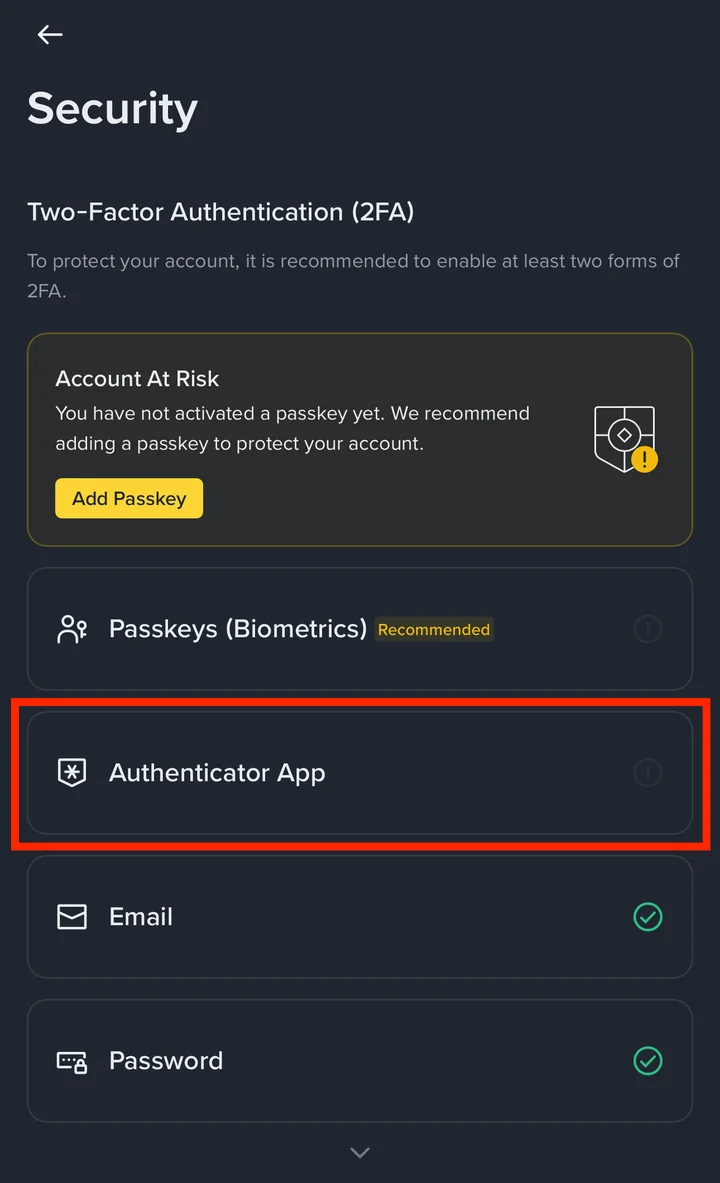
The Security screen itself recommends turning on at least two forms of 2FA. After you sign up, Email and Password are usually already on. In this guide, you add Authenticator App.
That said, Binance doesn't force you to use an authenticator app. If you just want to look around first, you can set it up later. (You only set it up once, so if you plan to keep funds on Binance, doing it early gives you peace of mind.)
Crypto prices are highly volatile and you can lose money. This guide explains an account security setting and is not investment advice.
If you haven't verified your identity yet, you can finish identity verification (KYC) first and come back.
2. Open the Authenticator App settings
You can open the 2FA settings in the Binance app or on the Binance website. Both end at the same place: Authenticator App inside Security. Follow whichever you normally use.
2-1. In the Binance app
Tap the profile icon at the top left of the home screen.
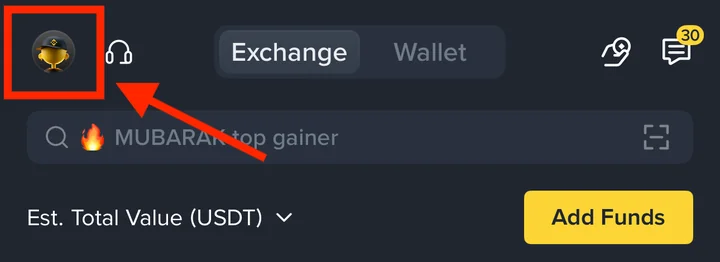
Tap your profile at the top of the screen.
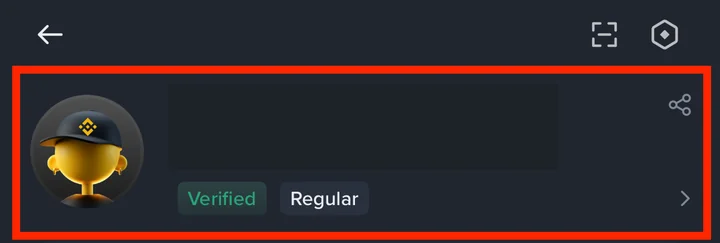
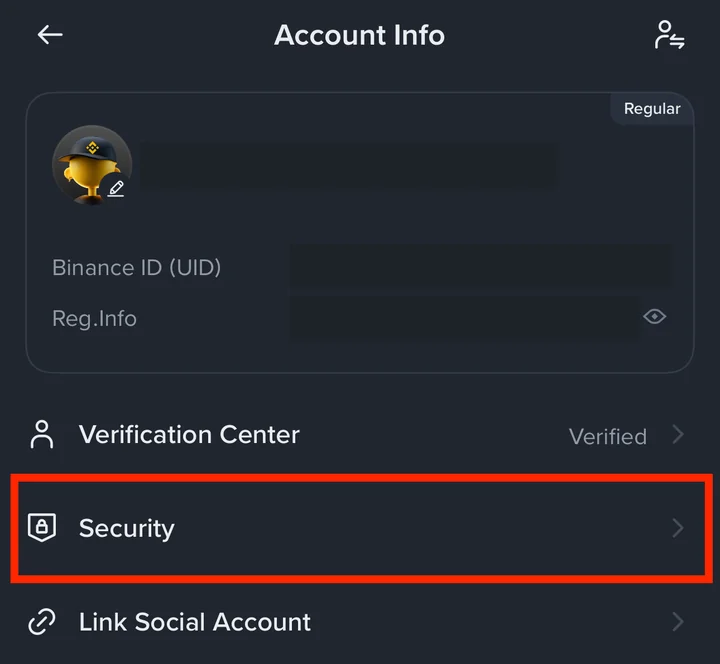
On the Account Info screen, tap Security.
Under Two-Factor Authentication (2FA), tap Authenticator App.
(You may also see an Account At Risk box suggesting a passkey. That's a separate option, so you can leave it for later.)
2-2. On the Binance website
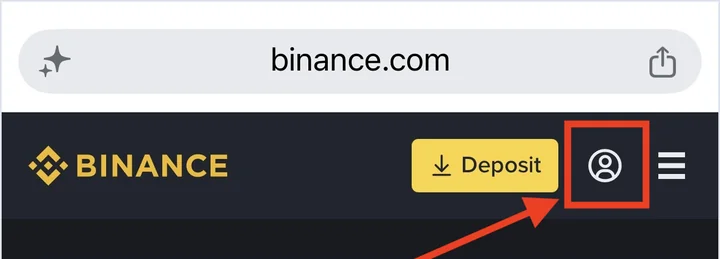
Log in and tap the profile icon at the top right of the home page.
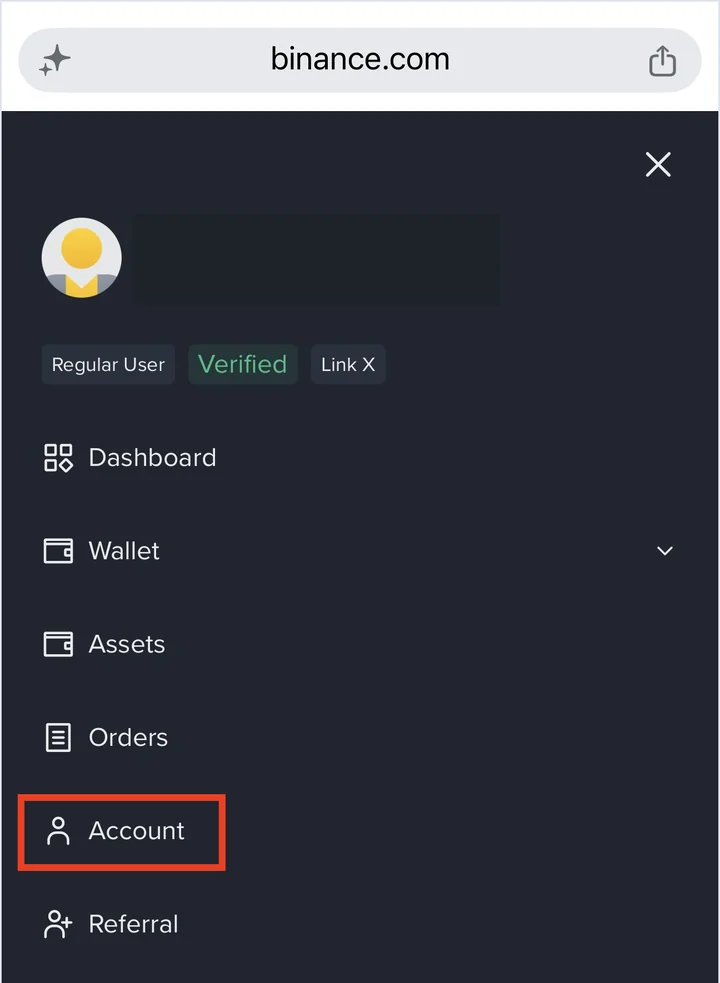
Tap Account.
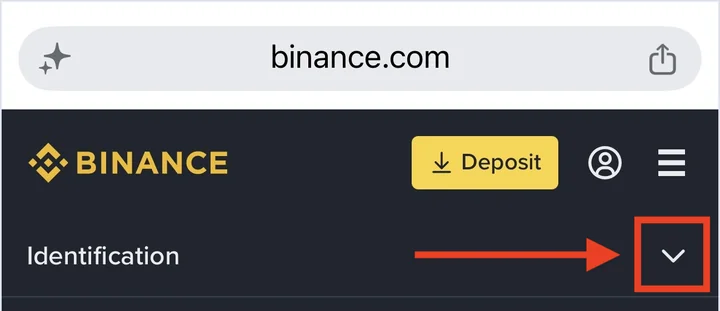
The Account page opens on Identification. Tap the arrow on the right to open the menu.
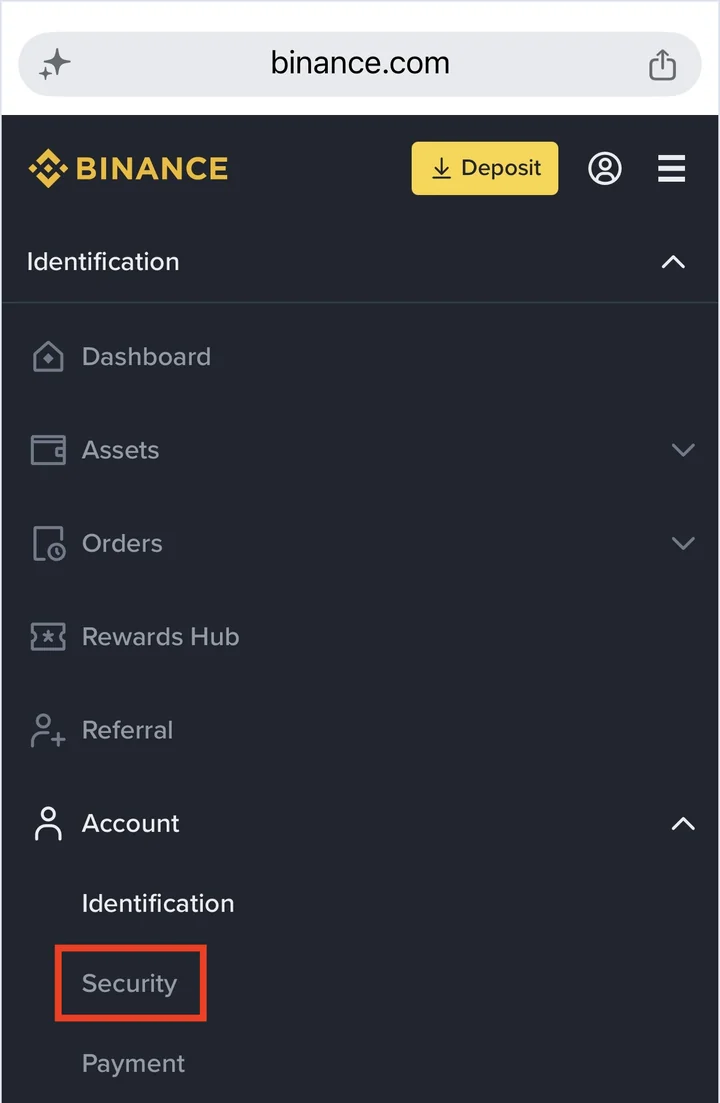
Under Account, tap Security.
Find Authenticator App and tap Manage. The next steps are the same as in the app. (This screenshot already shows On. Yours won't until you finish this guide.)
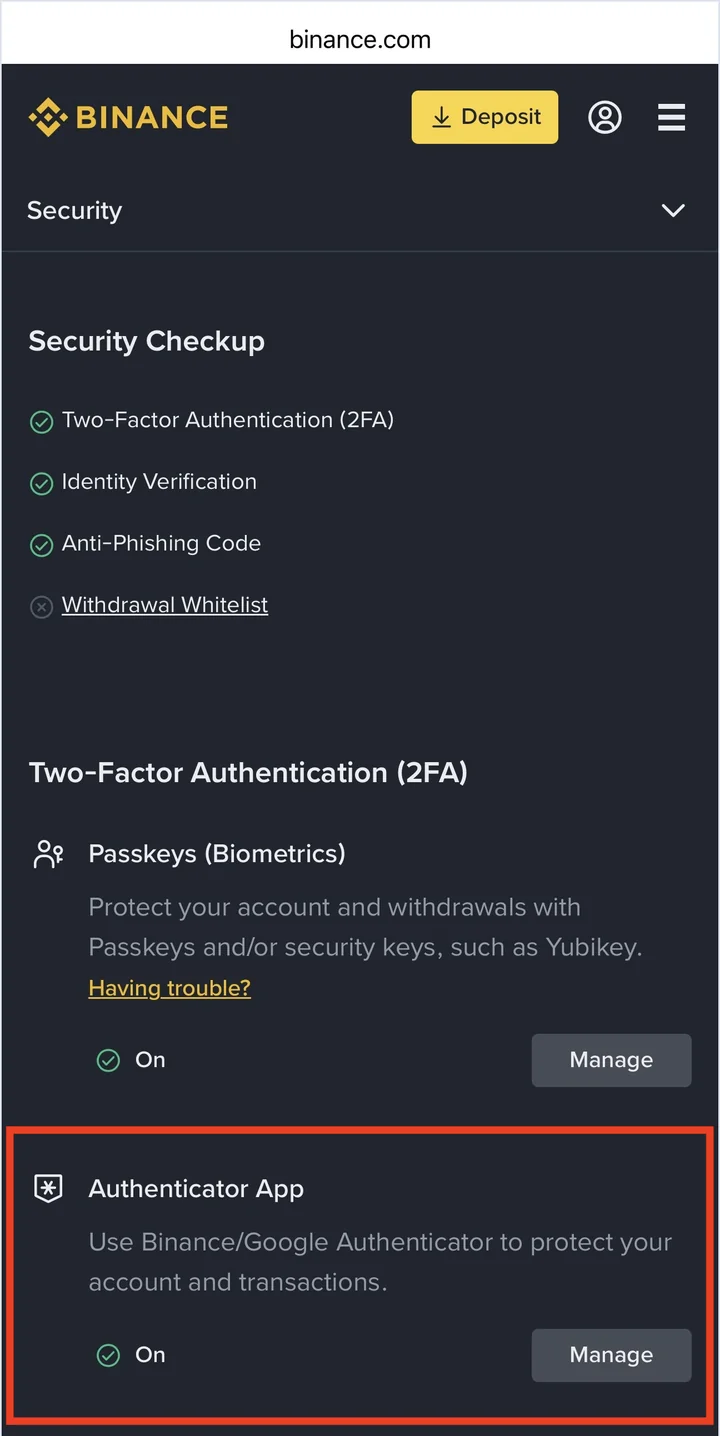
3. Binance Authenticator or Google Authenticator?
On the Authenticator App screen, you choose the app that creates your codes. The list shows Microsoft Authenticator, Binance Authenticator and Google Authenticator. This guide covers Binance and Google. Both are linked and used the same way. The main difference is how you recover your codes on a new phone.
| Item | Binance Authenticator | Google Authenticator |
|---|---|---|
| Made by | Binance | |
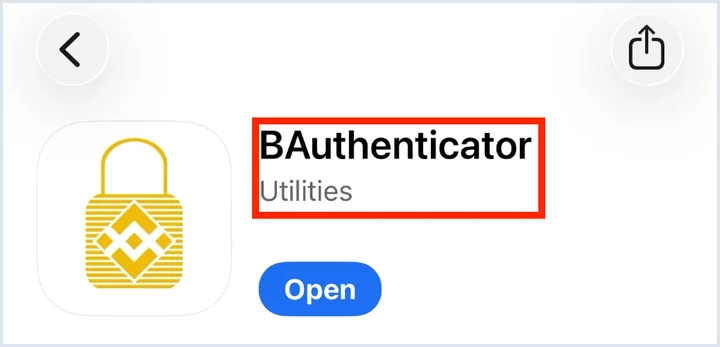
| Name in the app store | BAuthenticator | Google Authenticator |
| Recovery | Re-enter the 16-digit key you saved | Sync with your Google Account, or re-enter the saved key |
| Good choice if | You only use Binance | You also use 2FA on other exchanges and sites |
If you plan to use other exchanges too, I recommend Google Authenticator. It can back up your codes to your Google Account. (If you only plan to use Binance, Binance Authenticator is completely fine.)
▣ What happens to 2FA if I change or lose my phone?
Your codes are created on your phone. If you delete the app or change phones, the codes are gone until you restore them. There are three ways to get them back.
1) Save the 16-digit key you get during setup. Binance says this key lets you recover your authenticator if you lose your device. Enter it again on a new phone and the same codes come back.
2) If you don't have the key but can still log in to Binance, replace the authenticator in Security (see the FAQ at the end). Binance asks you to complete 2FA first, then gives you a new 16-digit key.
3) Google Authenticator backs up your codes when you sign in with a Google Account, so they follow you to a new phone that uses the same account.
If you can't log in at all, follow Binance's official guide to reset 2FA.
From here, the steps are the same in the app and on the website, so I'll use the app screens.
4. Set up Binance 2FA with Binance Authenticator
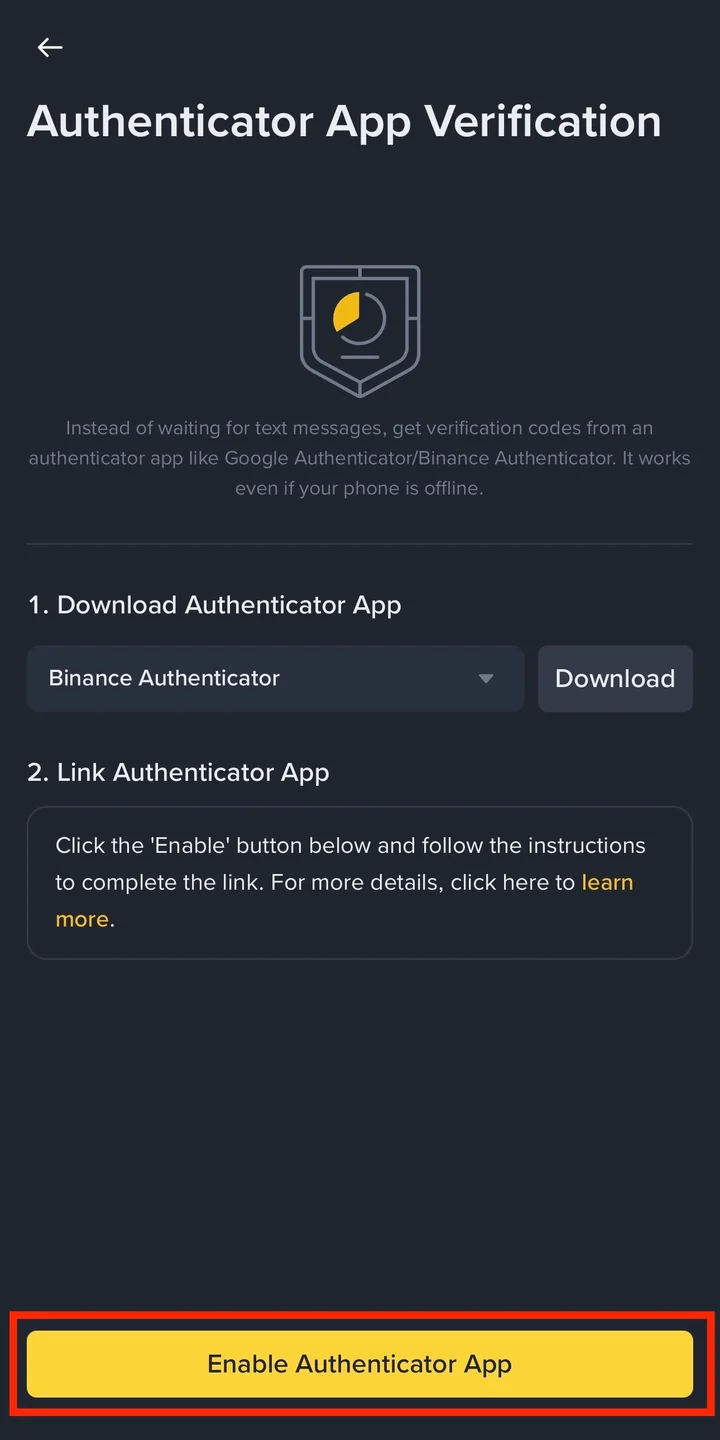
On the Authenticator App Verification screen, ① choose Binance Authenticator, then ② tap Download.
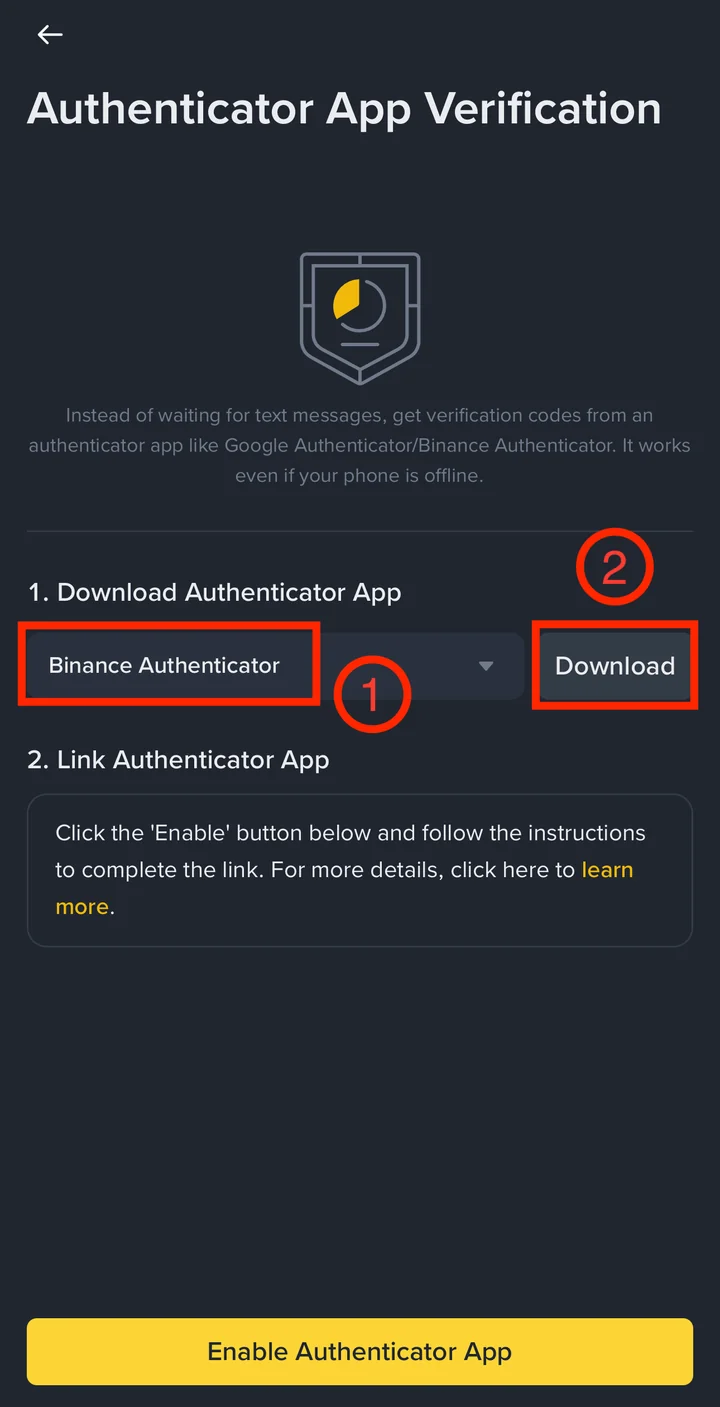
The Download button takes you to the BAuthenticator page in the App Store or Google Play. Install the app.
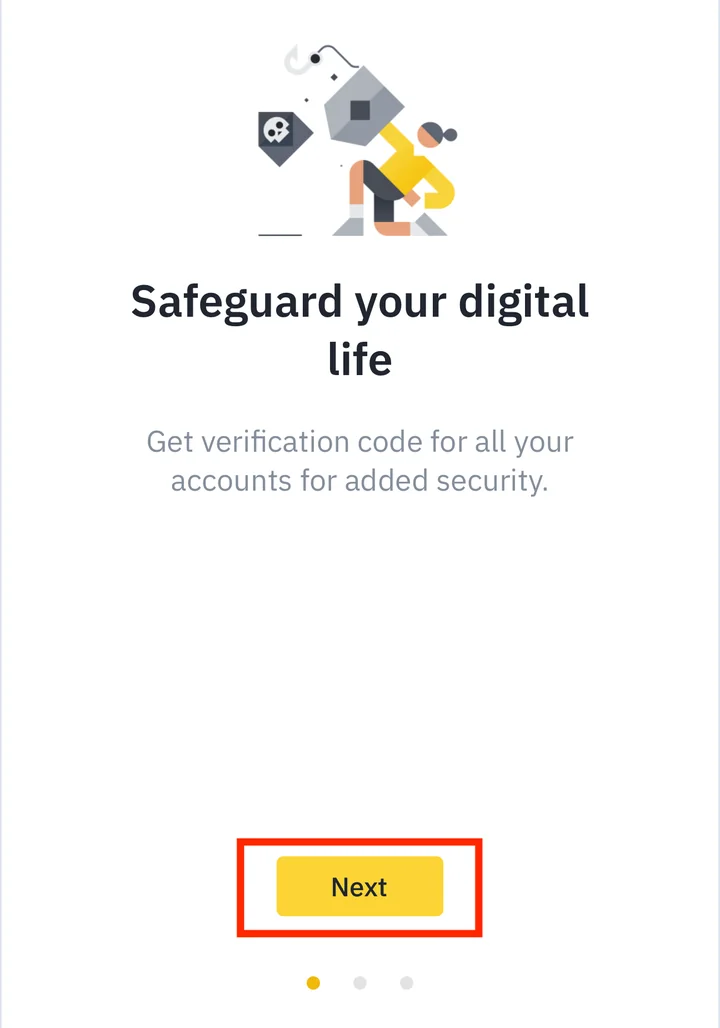
Open the app and go through the intro screens: Next → Next → Get started.
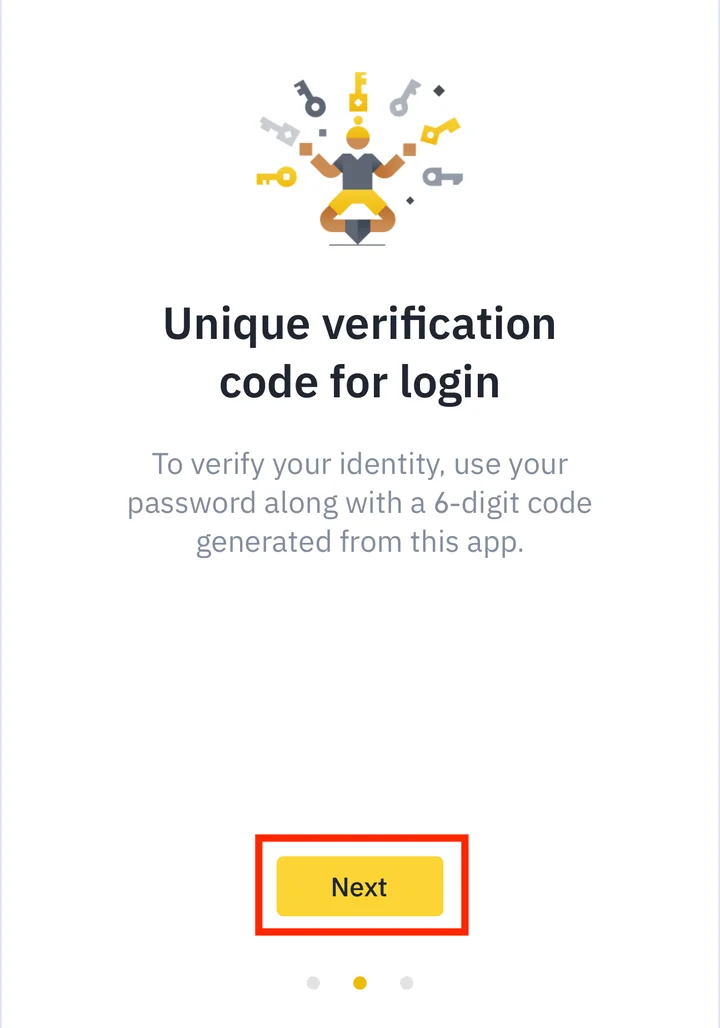
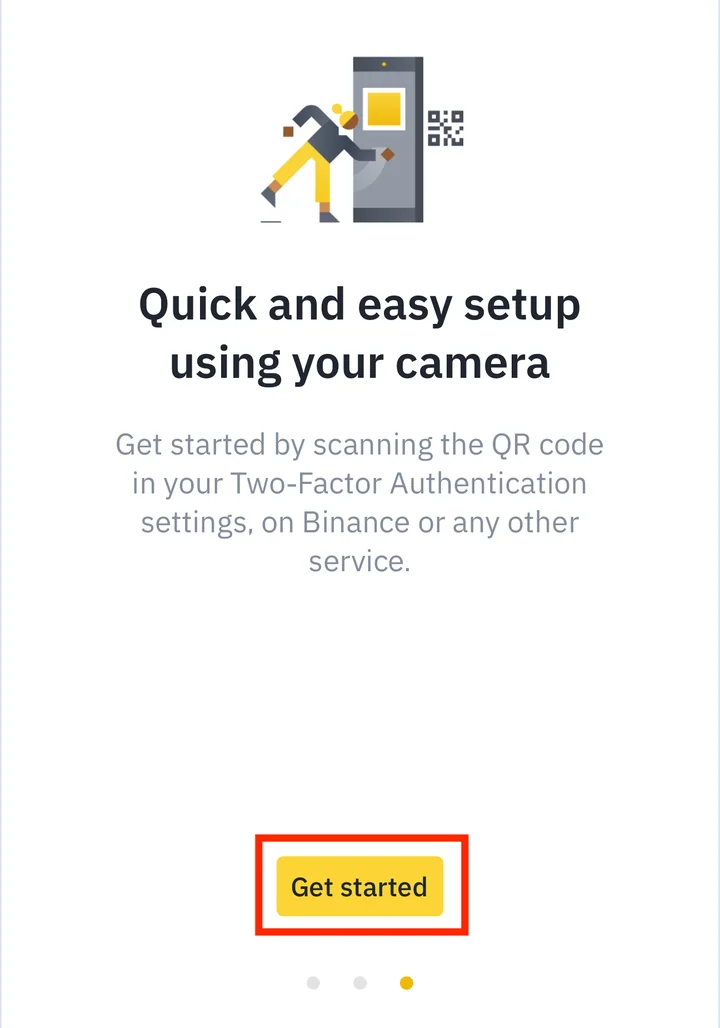
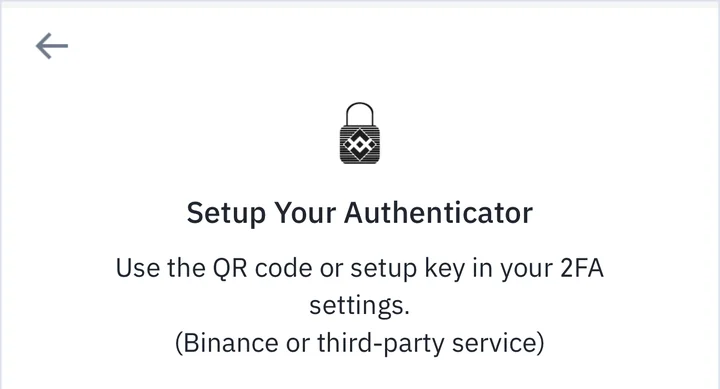
When you see Setup Your Authenticator, the app is ready.
(From here on, you switch between the authenticator app and the Binance app. Follow the screenshots and open each app in turn.)
Go back to the Binance app and tap Enable Authenticator App at the bottom of the screen.
Enter the 6-digit code sent to your sign-up email, then tap Submit.
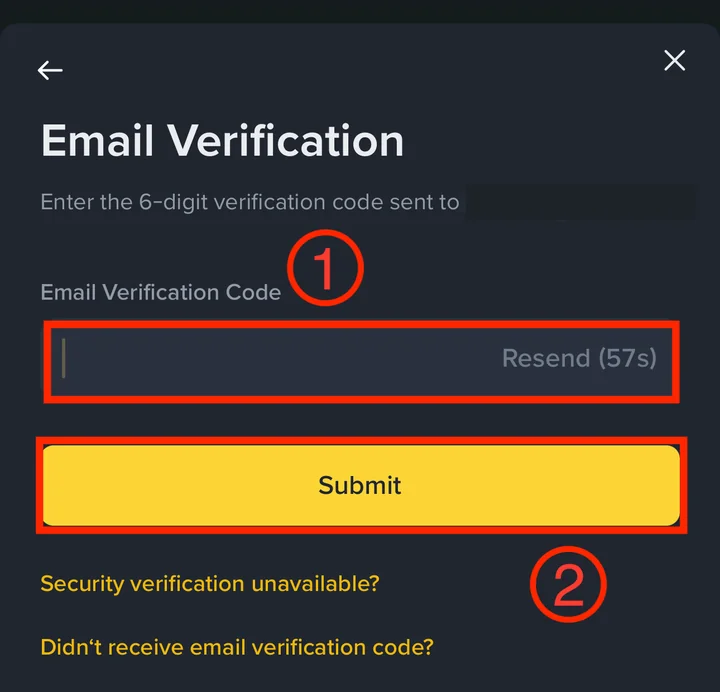
▣ If the email code doesn't arrive
1) When the Resend timer runs out, tap Resend to get a new code.
2) Check your spam and promotions folders.
3) If it still doesn't arrive, tap Didn't receive email verification code? on the same screen and follow the steps.
The Link an Authenticator screen shows your 16-digit key and a QR code. Tap Copy to copy the key. Don't tap Next yet.
(Important) This key belongs to your account only. Never share it with anyone.
Binance says to save it in a secure place, because it lets you recover your authenticator if you lose your phone.
Write it down and keep it offline, somewhere no one else can see it.
This guide doesn't show this screen on purpose: a key or QR code should never be shared, even blurred.
Switch to BAuthenticator and tap Enter a setup key.
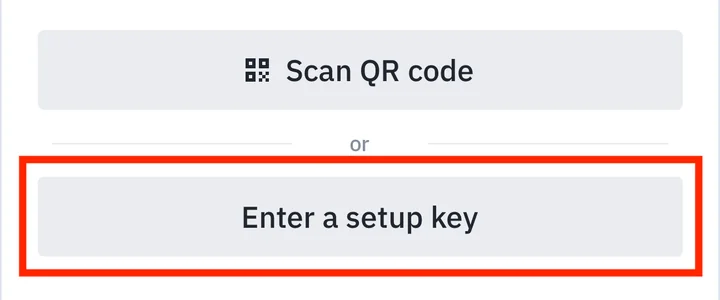
Service and Account are already filled in. Paste the 16-digit key into the Key field and tap Continue.
BAuthenticator now shows a 6-digit code for Binance. Whenever Binance asks for your authenticator code, open this app and enter these 6 digits. To finish linking, copy the current code and go back to the Binance app.
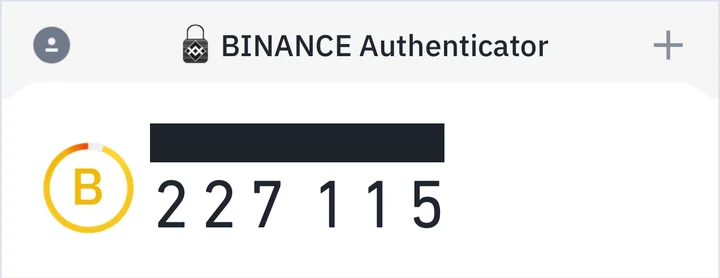
In the Binance app, tap Next at the bottom of the Link an Authenticator screen.
Enter the 6-digit code from BAuthenticator (or tap Paste) and tap Submit.
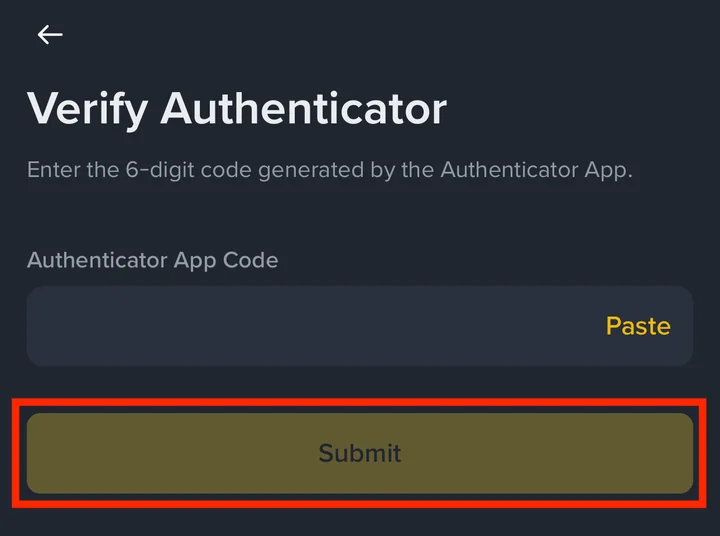
▣ If Binance says the 6-digit code is wrong
The code changes every 30 seconds, so the one you copied may have expired. Open the authenticator app again and enter the new 6 digits.
If it keeps failing, set your phone's date and time to automatic, as Binance's help pages suggest.
Done. On the Security screen, a green check now appears next to Authenticator App. If you'd also like to log in with your fingerprint or face, tap Passkeys (Biometrics) and set it up.
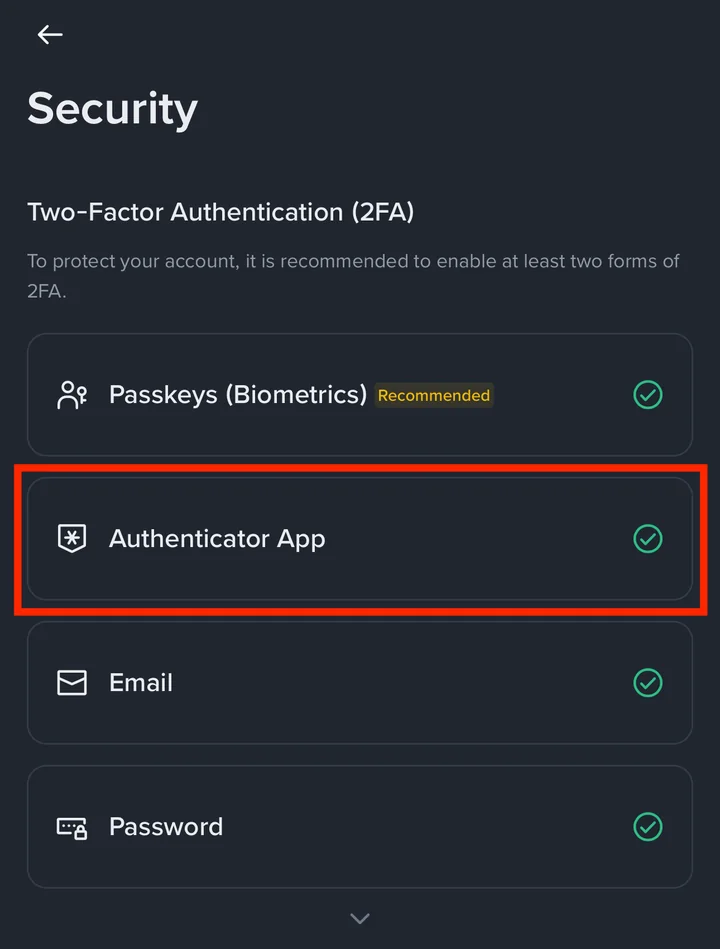
Nice work. Binance 2FA with Binance Authenticator is now on.
5. Set up Binance 2FA with Google Authenticator
On the Authenticator App Verification screen in the Binance app, tap the app box (it shows Binance Authenticator) to open the list, and choose Google Authenticator. Then tap Download.
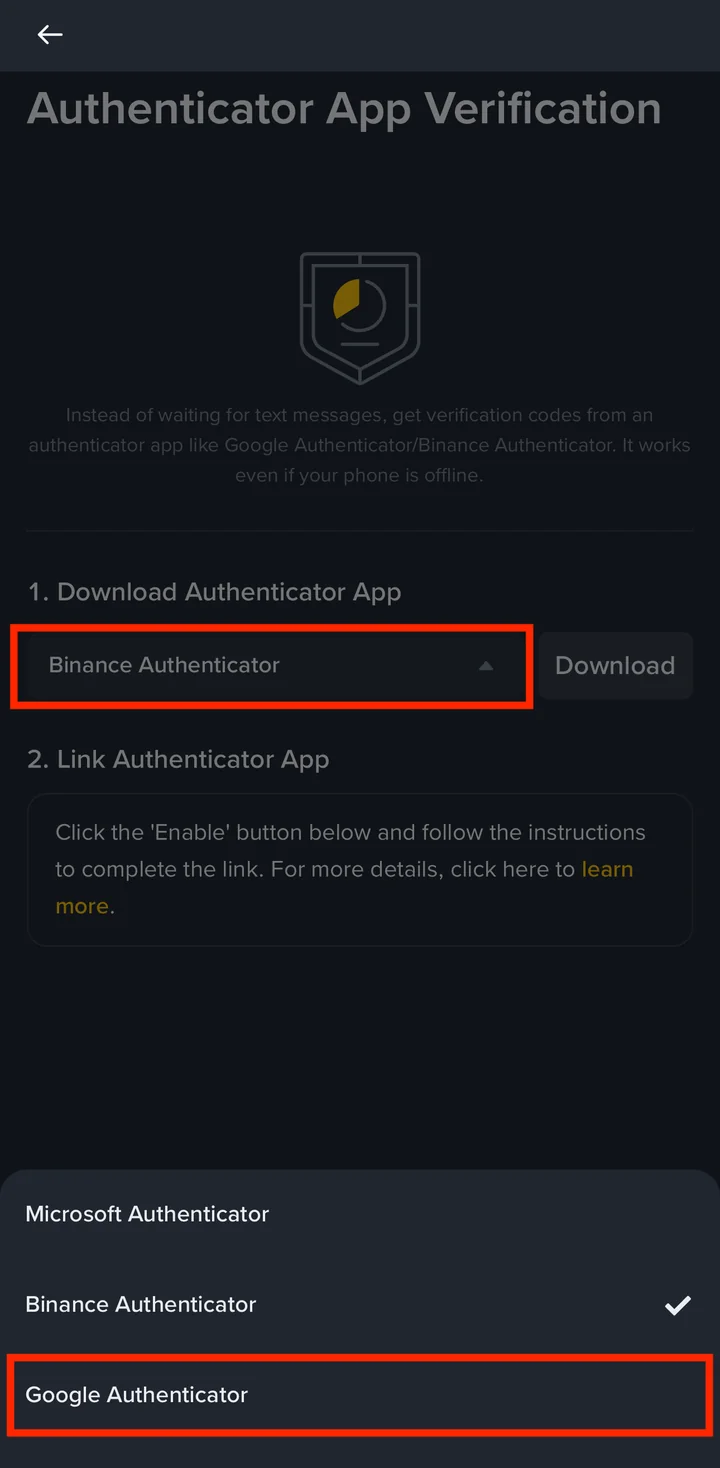
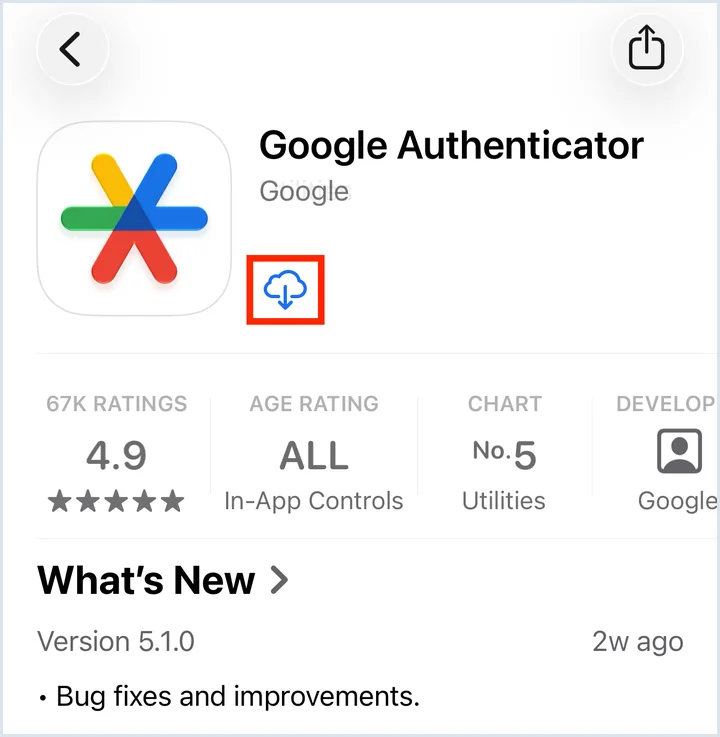
The Download button takes you to the Google Authenticator page in the App Store or Google Play. Install the app made by Google.
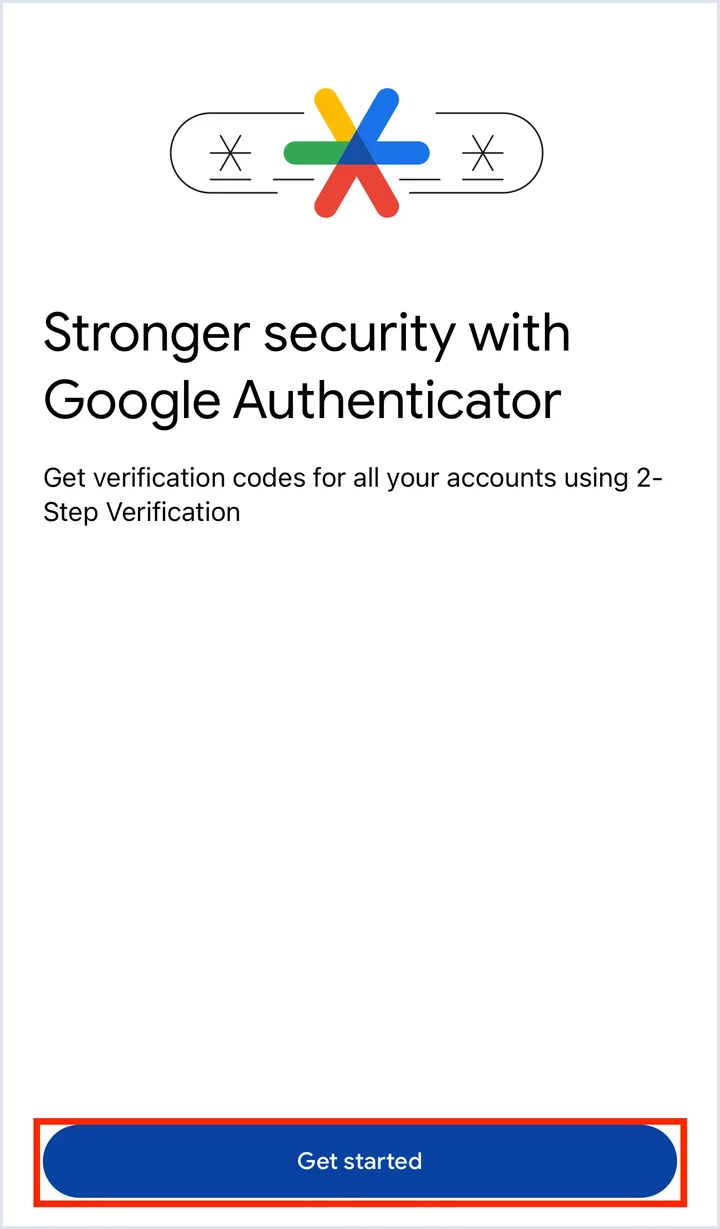
Open Google Authenticator and tap Get started.
Sign in with your Google Account (Continue as your name), or tap Use Authenticator without an account.
(The screen says signing in backs up your codes to your Google Account.)
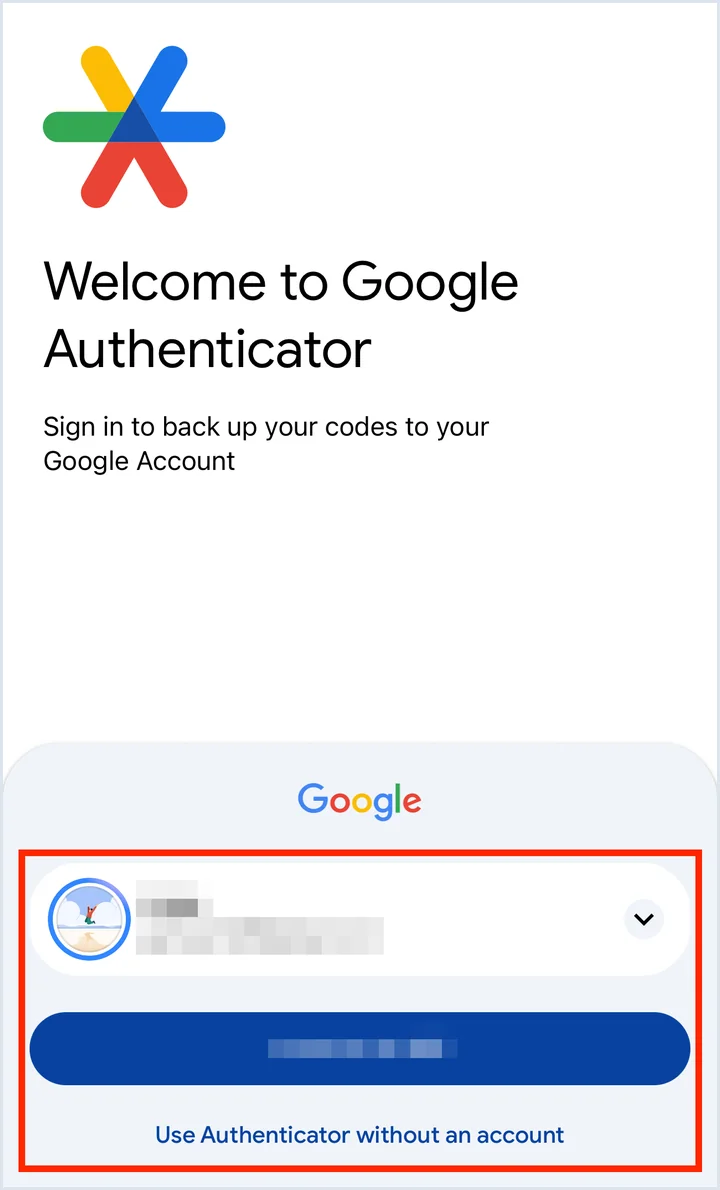
(From here on, you switch between the authenticator app and the Binance app. Follow the screenshots and open each app in turn.)
Go back to the Binance app. Check that the app box shows Google Authenticator, then tap Enable Authenticator App.
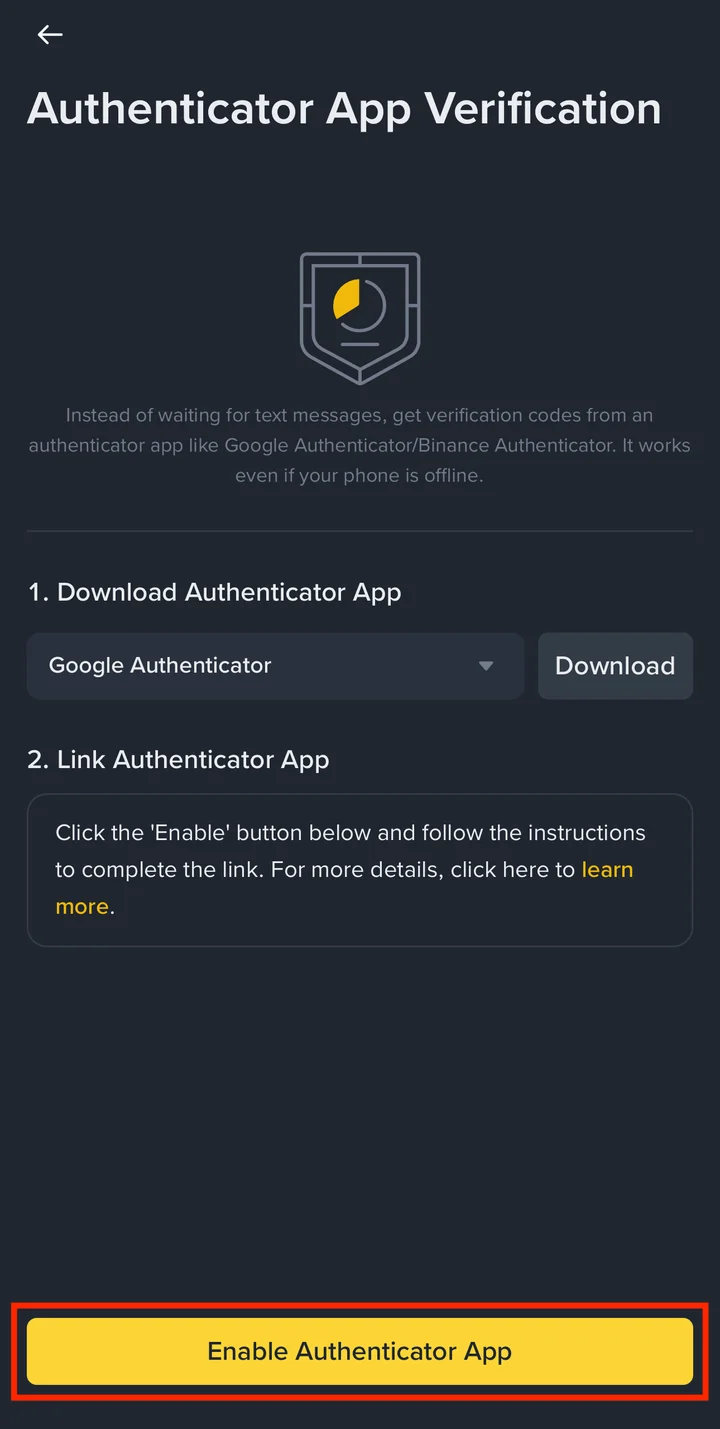
Enter the 6-digit code sent to your sign-up email, then tap Submit.
▣ If the email code doesn't arrive
1) When the Resend timer runs out, tap Resend to get a new code.
2) Check your spam and promotions folders.
3) If it still doesn't arrive, tap Didn't receive email verification code? on the same screen and follow the steps.
The Link an Authenticator screen shows your 16-digit key and a QR code. Tap Copy to copy the key. Don't tap Next yet.
(Important) This key belongs to your account only. Never share it with anyone.
Binance says to save it in a secure place, because it lets you recover your authenticator if you lose your phone.
Write it down and keep it offline, somewhere no one else can see it.
This guide doesn't show this screen on purpose: a key or QR code should never be shared, even blurred.
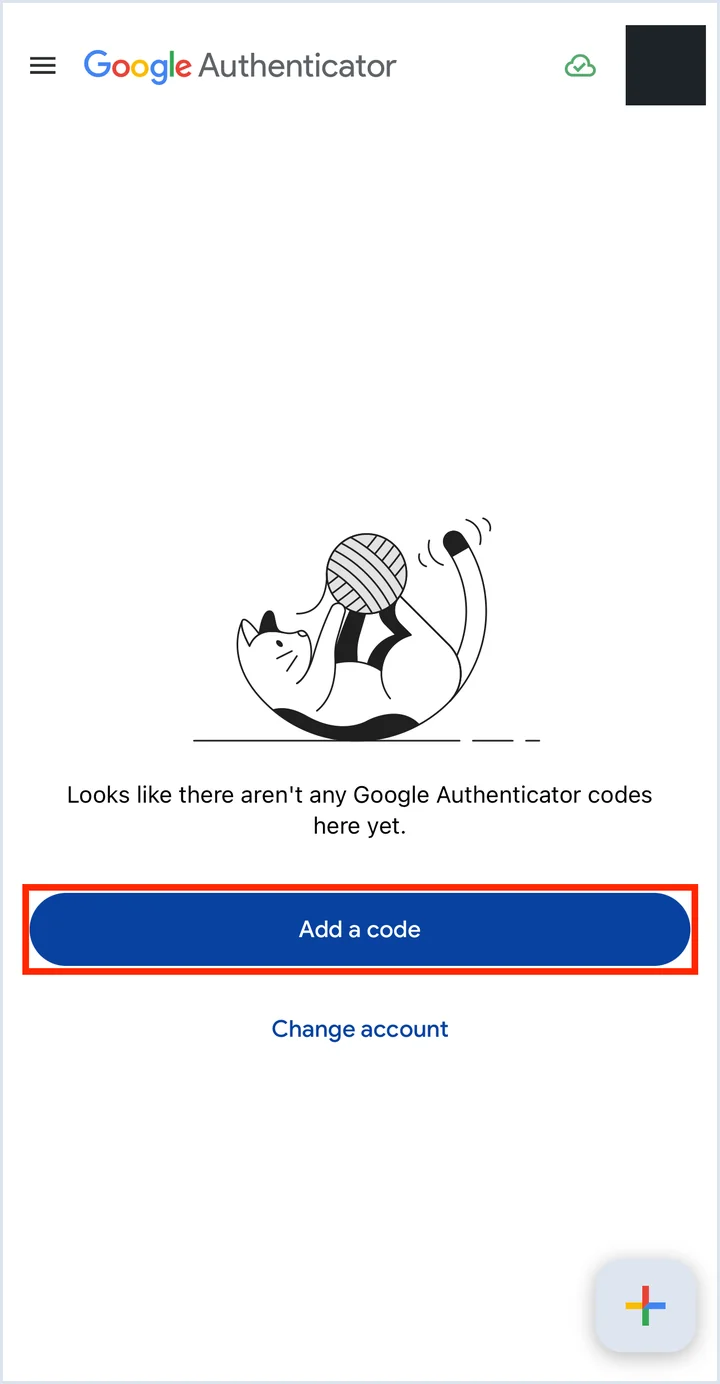
Switch to Google Authenticator and tap Add a code (or the + button at the bottom right).
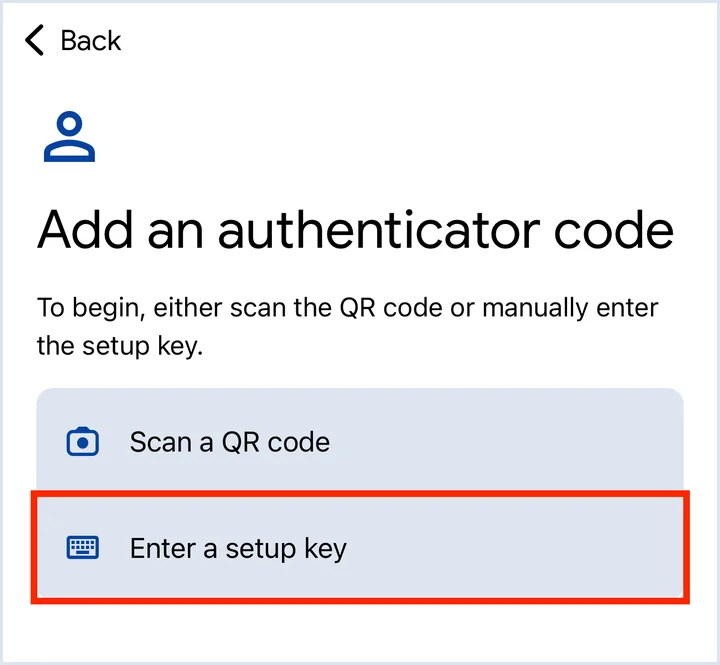
Tap Enter a setup key.
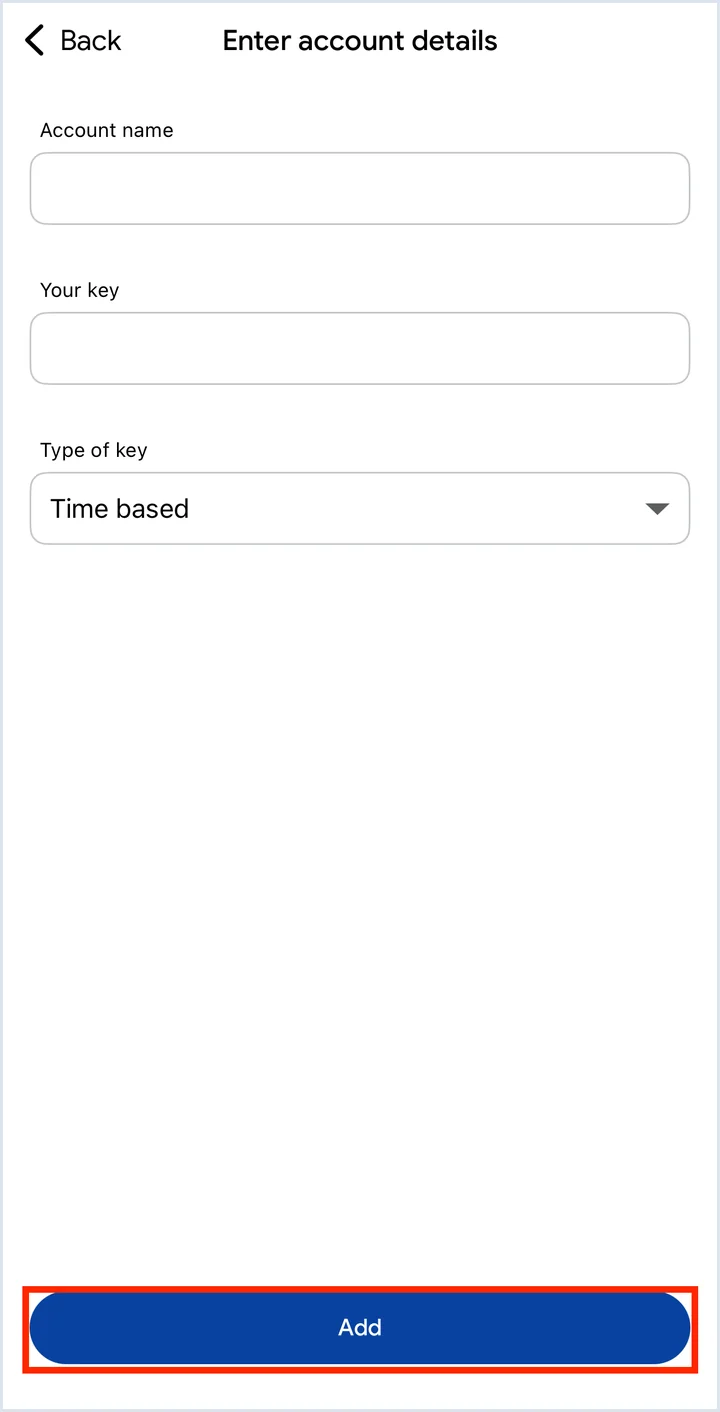
Type a name in Account name, paste the 16-digit key from Binance into Your key, and tap Add. Use the exchange's name as the account name, for example Binance, so it's easy to tell apart later. (Type of key is Time based by default. Leave it as it is.)
Google Authenticator now shows a 6-digit code for Binance.
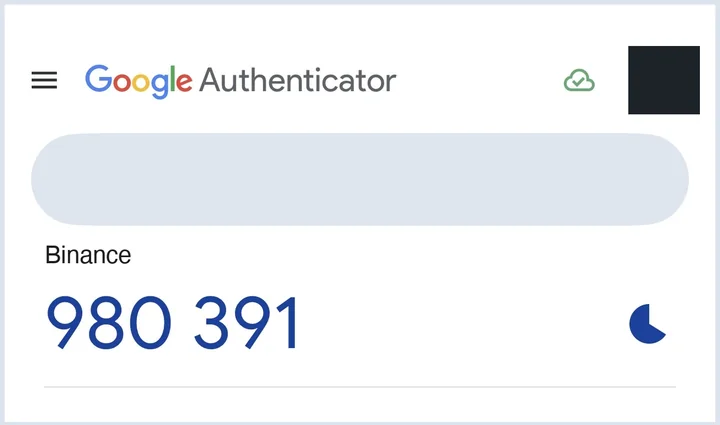
Whenever Binance asks for your authenticator code, open this app and enter these 6 digits. To finish linking, copy the current code and go back to the Binance app.
In the Binance app, tap Next on the Link an Authenticator screen. Then enter the 6-digit code from Google Authenticator (or tap Paste) and tap Submit.
▣ If Binance says the 6-digit code is wrong
The code changes every 30 seconds, so the one you copied may have expired. Open the authenticator app again and enter the new 6 digits.
If it keeps failing, set your phone's date and time to automatic, as Binance's help pages suggest.
Done. On the Security screen, a green check now appears next to Authenticator App. If you'd also like to log in with your fingerprint or face, tap Passkeys (Biometrics) and set it up.
Nice work. Binance 2FA with Google Authenticator is now on.
6. Binance 2FA setup FAQ
Do I have to type a 6-digit code every time I log in?
Usually, yes. Binance asks for a 2FA check when you log in and for actions that need extra security, such as withdrawals.
Will Binance support ever ask me for my 6-digit code or my 16-digit key?
No. Any message or call that claims to be from Binance support and asks for your code or key is a scam. Don't reply to it.
Can I switch from Binance Authenticator to Google Authenticator later?
Yes. On the Binance website, open Security, tap Manage next to Authenticator App, tap the edit icon next to your current app, then link the new app the same way. Binance disables withdrawals, internal transfers and P2P transactions for up to 48 hours after you change your authenticator, so switch when you don't need to withdraw.
That's it: your Binance 2FA setup is complete. Switching between two apps may have felt fiddly the first time, but from now on you only type 6 digits. In the next guide, I'll show you how to make your first spot trade on Binance. Well done!