Hi, this is CoinFirstStep. If you want to sign up on Binance in India and aren't sure where to start, this guide walks you through every screen.
The short answer: open the sign-up page through the referral link and the code MAXFEEBACK is filled in for you, or type it yourself in the app when it asks "Do you have an inviter?" With the code, you get a 20% commission rebate on your trading fees. After that, you verify your identity (KYC).
Have your email or mobile number, your Aadhaar number and your PAN ready. KYC follows right after sign-up.
At a glance
| What you need | Email or mobile number, your Aadhaar number, and your PAN if you have one |
|---|---|
| Two ways | Link: the code is filled in automatically / App: you type the code yourself |
| Order | Sign up → KYC (DigiLocker, or ID photo and face scan) |
1. Before you sign up on Binance in India
Binance is a crypto exchange that launched in 2017. It has over 300 million registered users and is one of the largest exchanges in the world by trading volume.
For readers in India: Binance is registered with India's Financial Intelligence Unit (FIU-IND) as a reporting entity, and its website and app are available to Indian users. (Binance announcement)
Why people in India use it alongside, or instead of, an Indian exchange:
1. Deeper markets — Binance trades far more volume than India-based exchanges. With more buyers and sellers, your order usually fills closer to the price you see, even for larger amounts.
2. Many coins — a wide choice of coins to trade.
3. Everything in one account — spot, futures and Earn, plus P2P for buying USDT with INR over UPI.
You must be at least 18 years old to open an account. If you don't plan to trade crypto, you don't need to sign up at all.
2. How to sign up on Binance
There are two ways to sign up. The link is easier, because it fills in the referral code for you.
2-1. Sign up with the link (code added automatically)
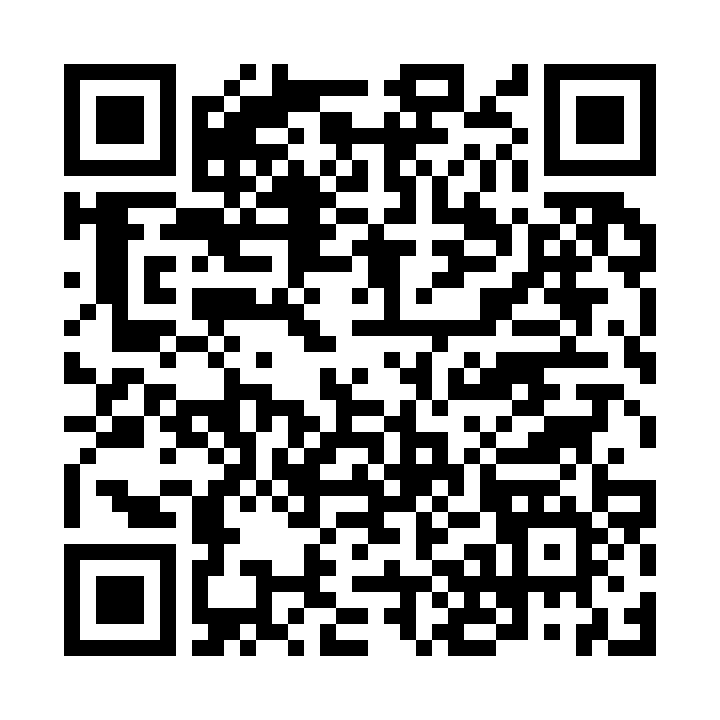
Open the sign-up page with the link below, or scan the QR code with your phone.
20% commission rebate
Referral link: you get a 20% commission rebate on your trading fees (disclosure).
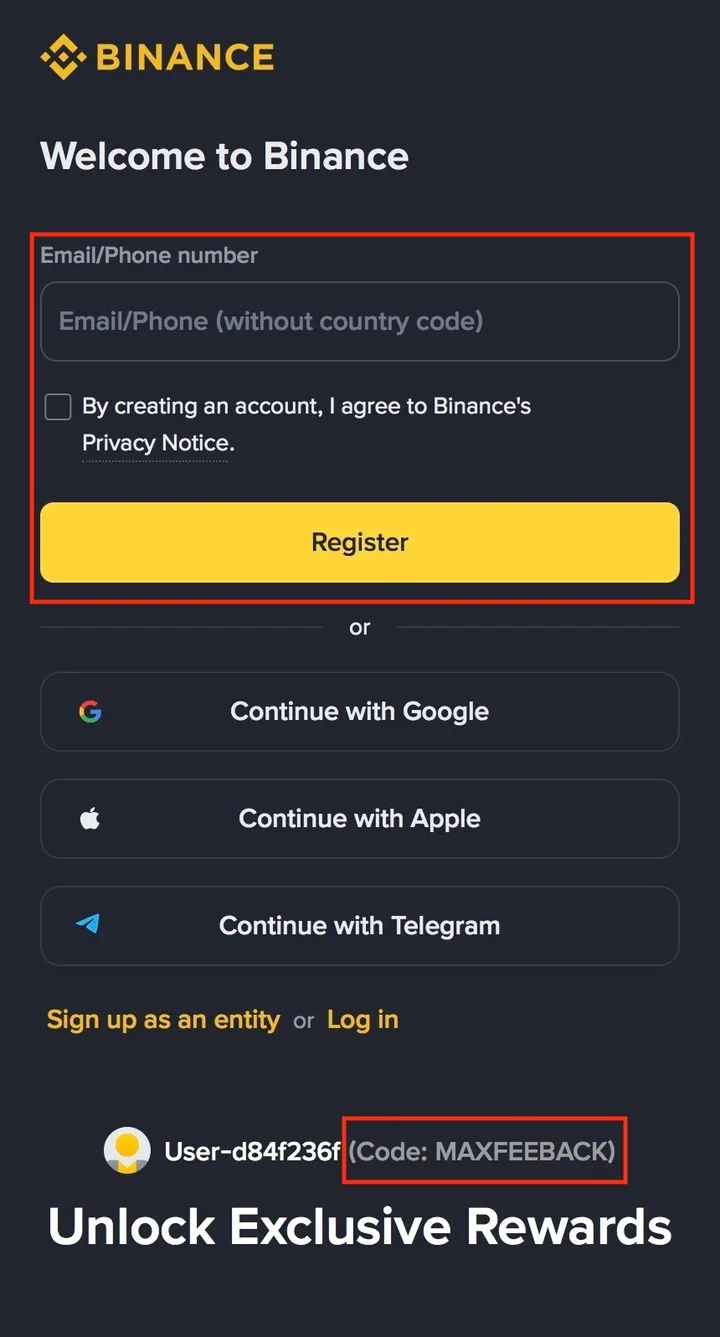
Enter your email address or mobile number. Leave out the country code (no +91).
Tick the box By creating an account, I agree to Binance's Privacy Notice, then tap Register.
(Important) Before you tap Register, check that (Code: MAXFEEBACK) is shown at the bottom of the screen.
If it isn't there, open the sign-up page again with the link above.
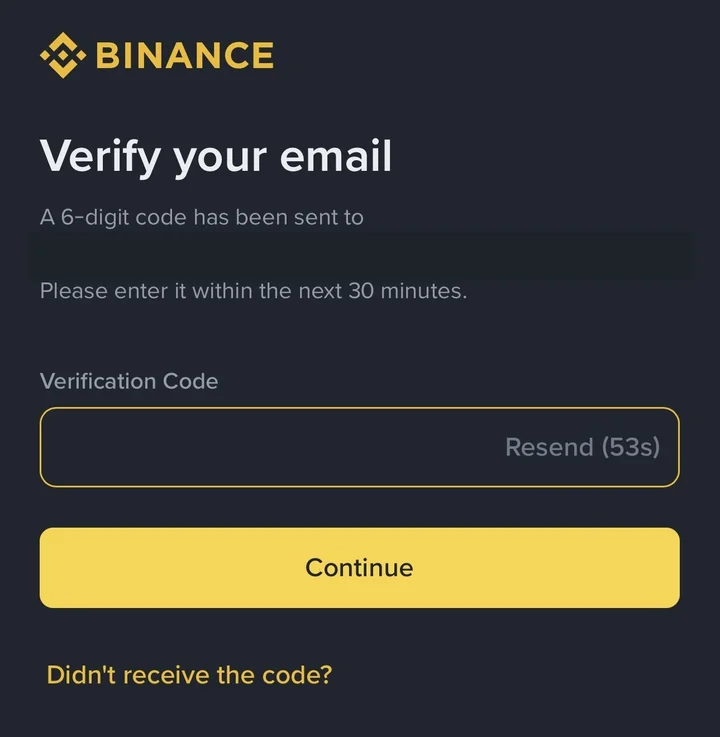
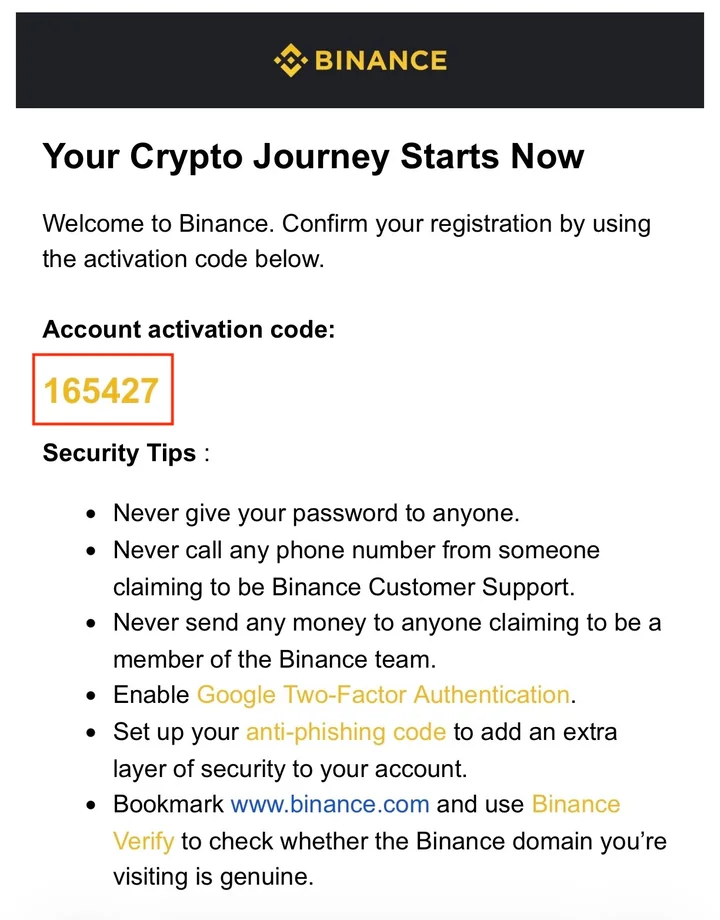
Enter the 6-digit verification code sent to your email (or by SMS), then tap Continue. The code works for 30 minutes.
▣ If the code doesn't arrive
Check your spam or promotions folder first. Still nothing? Wait for the timer to end and tap Resend, or tap Didn't receive the code?
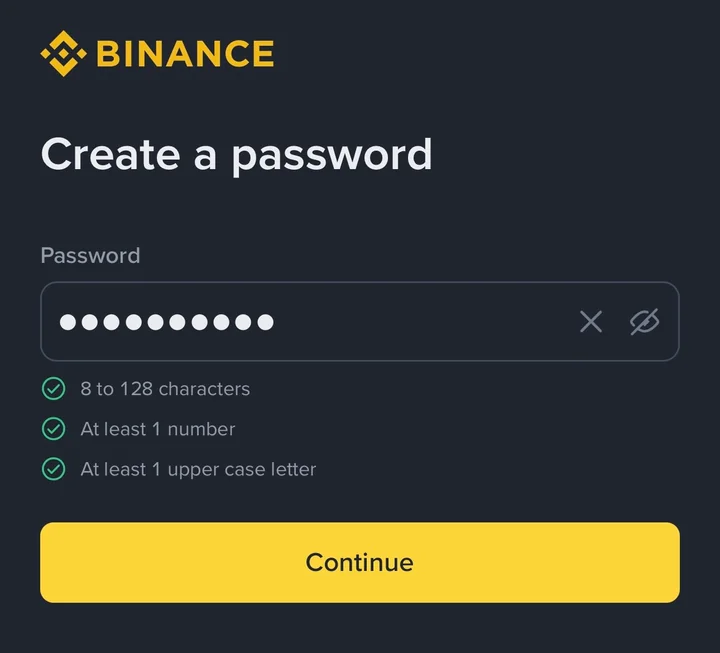
Create a password: 8 to 128 characters, with at least 1 number and 1 uppercase letter. When all three rules turn green, tap Continue.
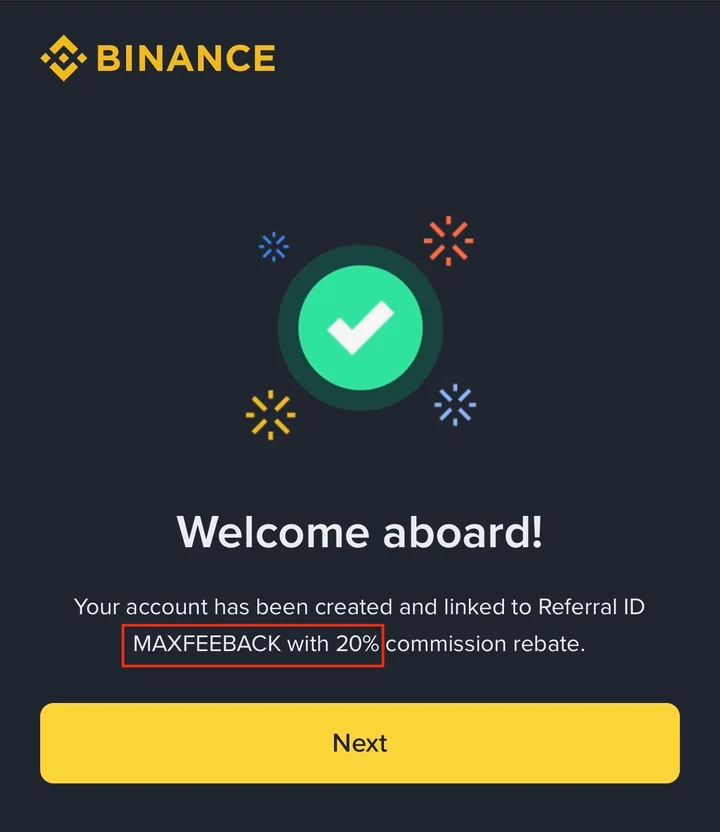
Your account is created. Check that the screen says it is linked to Referral ID MAXFEEBACK with 20% commission rebate.
2-2. Sign up in the Binance app (type the code yourself)
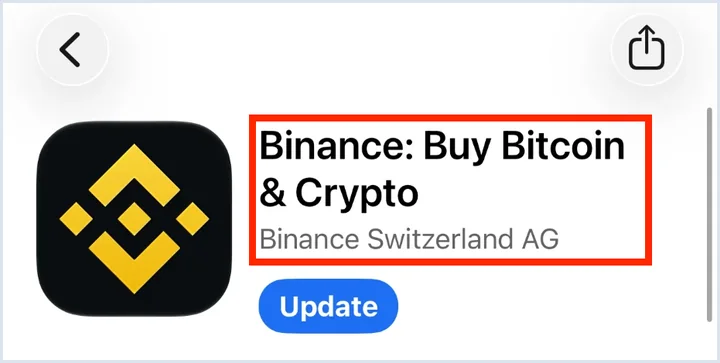
Install the official Binance app from Google Play or the App Store. It is listed as Binance: Buy Bitcoin & Crypto.
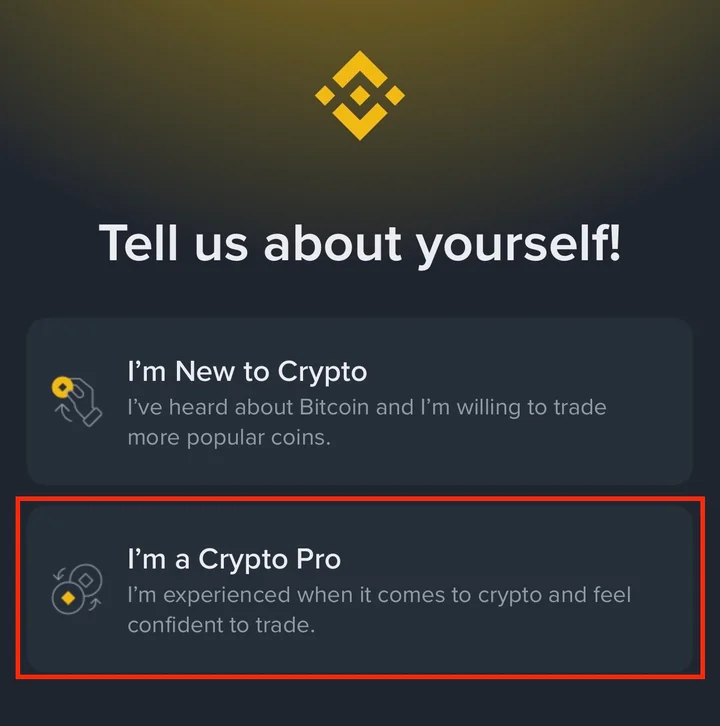
When you open the app for the first time, it asks you to choose I'm New to Crypto or I'm a Crypto Pro.
I recommend I'm a Crypto Pro even if you are new, because its home screen shows a list of coins. (Either option works. You can switch later.)
On the app's home screen, tap Sign Up / Log In.

Sign up the same way as STEP 2 to STEP 4 in 2-1 of section 2 (Sign up with the link): enter your email or mobile number, tick the Privacy Notice box, tap Register, enter the 6-digit code and create a password.
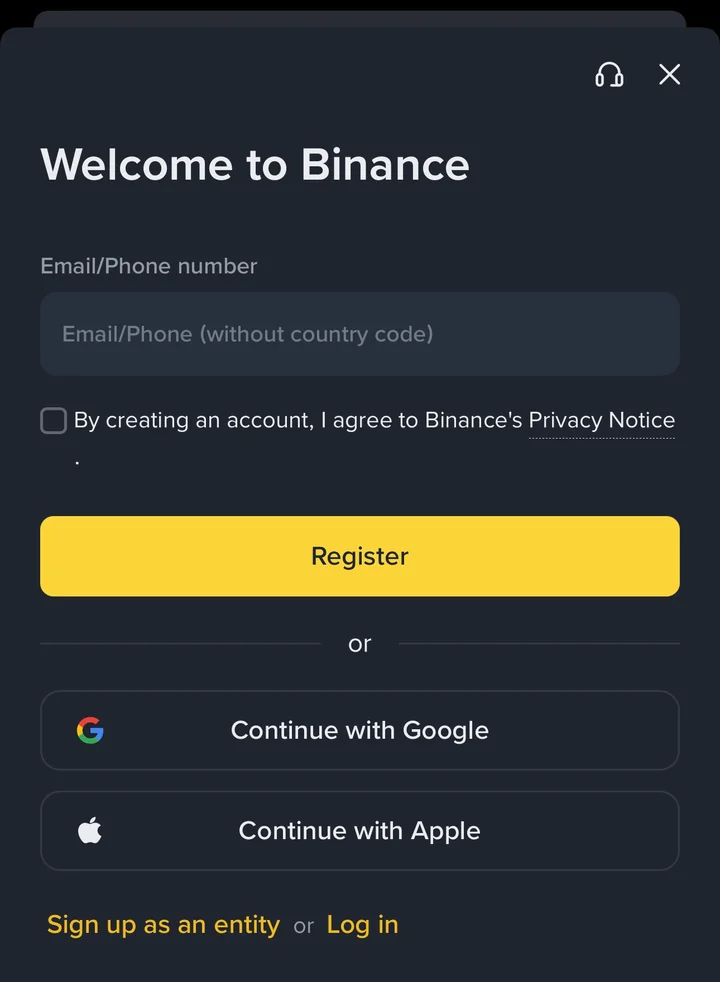
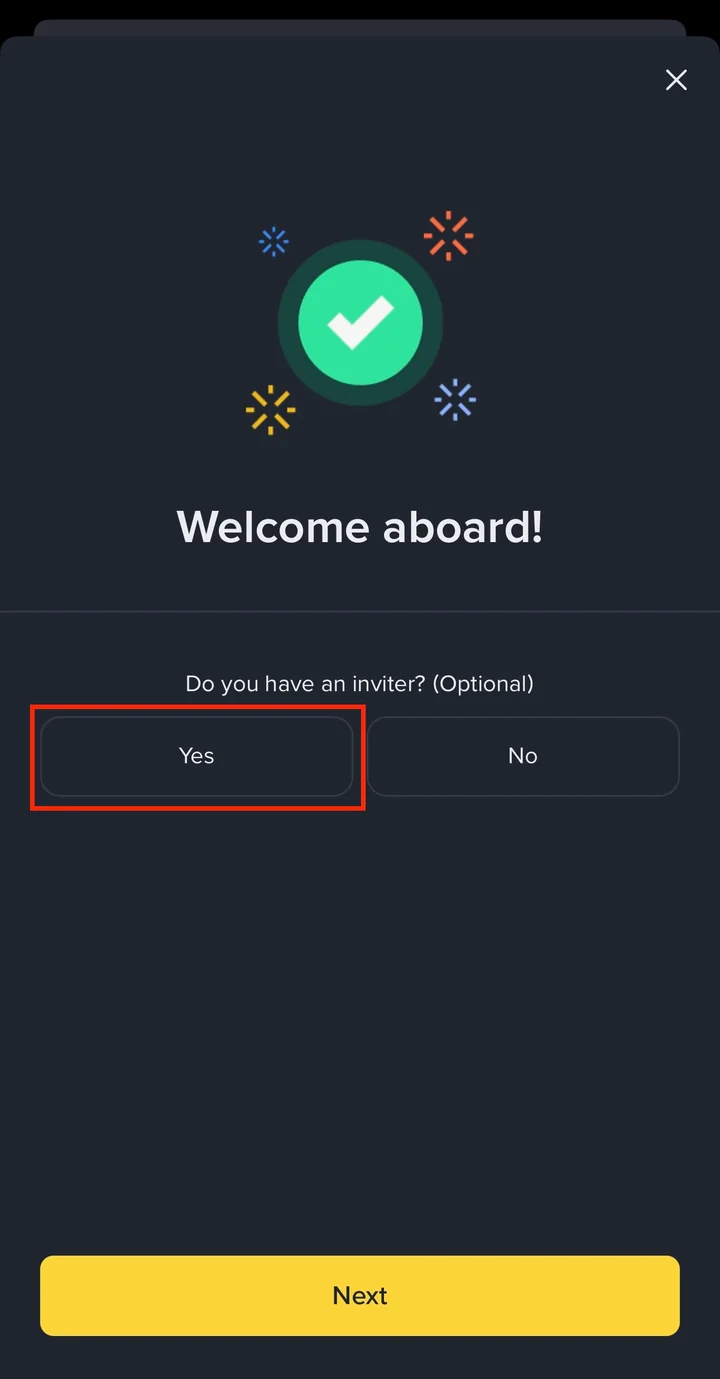
(Important) This screen is where you enter the referral code. If you skip it, you can add the code later only in limited cases.
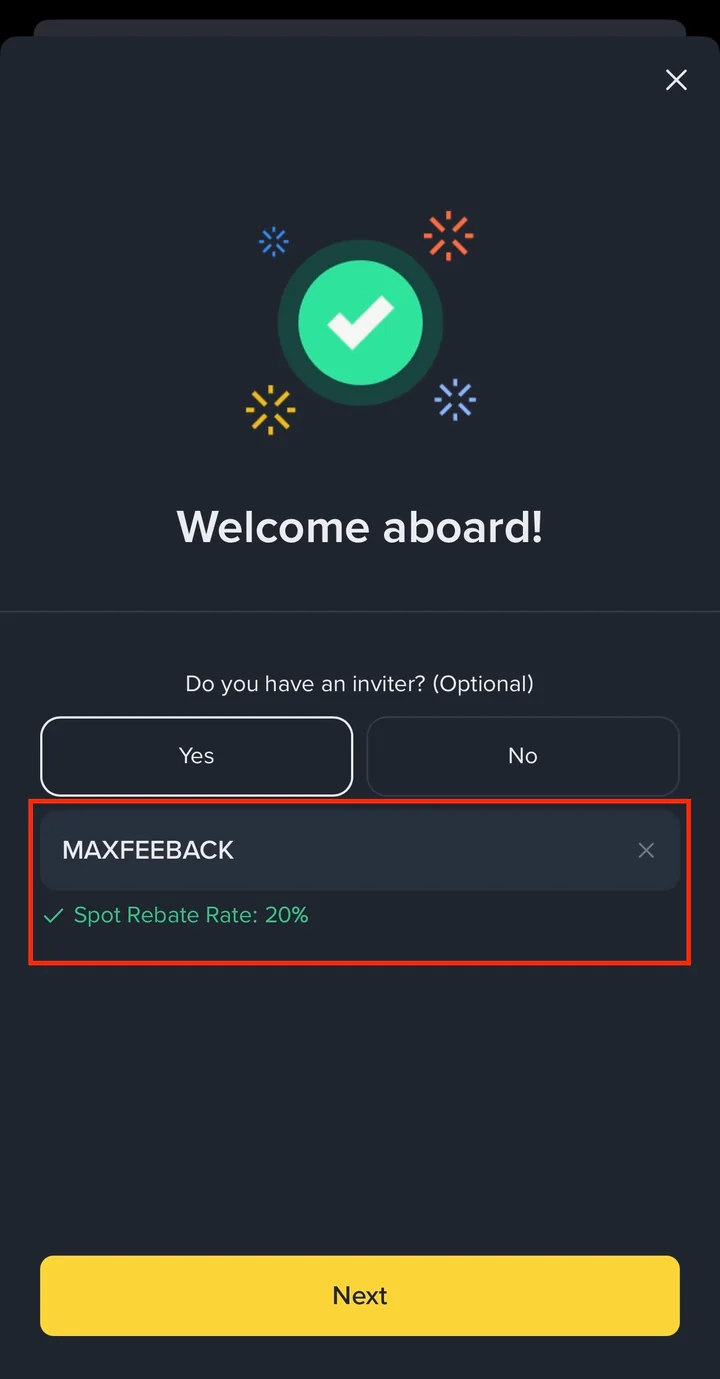
When the app asks Do you have an inviter?, tap Yes and type MAXFEEBACK.
A green line confirming the 20% commission rebate appears when the code is correct. Tap Next to finish.
Nice work. Your Binance account is ready.
3. How to complete Binance KYC
Next is identity verification (KYC). New accounts must finish it before they can deposit or trade, so it is best to do it right away.
In India
Binance has its own identity verification guide for India residents.
STEP 3 in this section (section 3) shows an India account. The other KYC screenshots come from an account outside India (Binance website in a phone browser), so your screens may look slightly different.
Keep your Aadhaar number and PAN ready.
Enter your name exactly as it appears on your ID. Binance says you can't change your details after you confirm them.
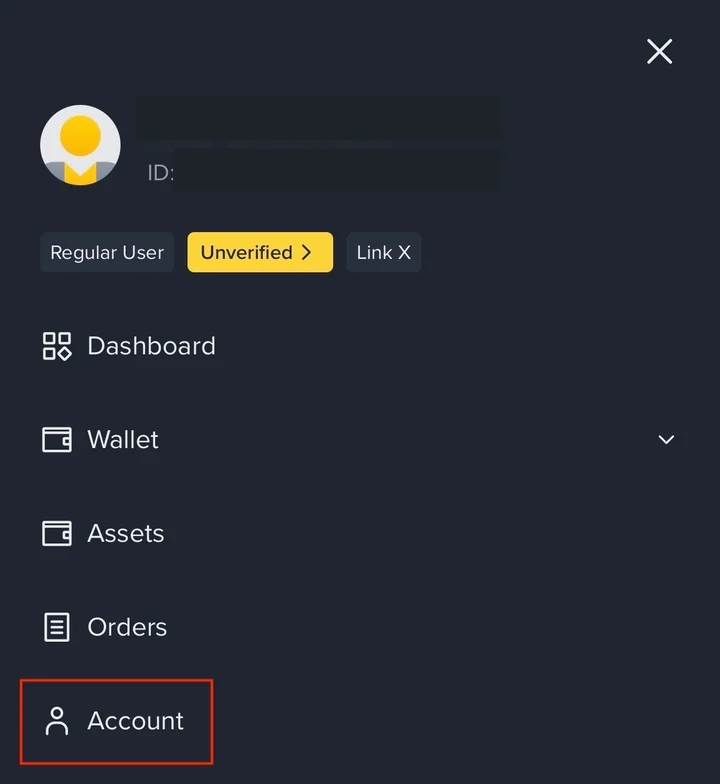
On the Binance website, tap the profile icon at the top right of the Dashboard. In the Binance app, open Account Info and tap Verification Center instead.
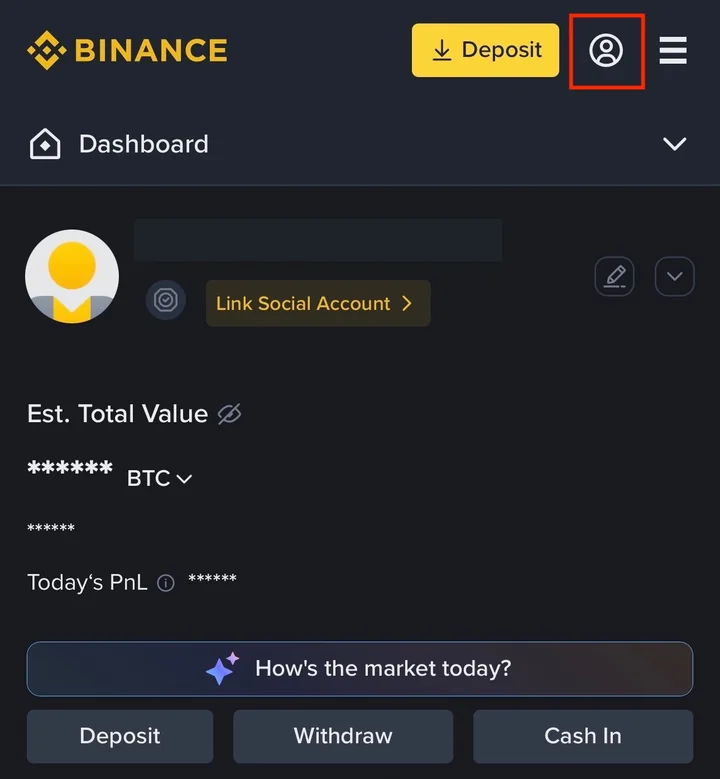
Tap Account in the menu that opens.
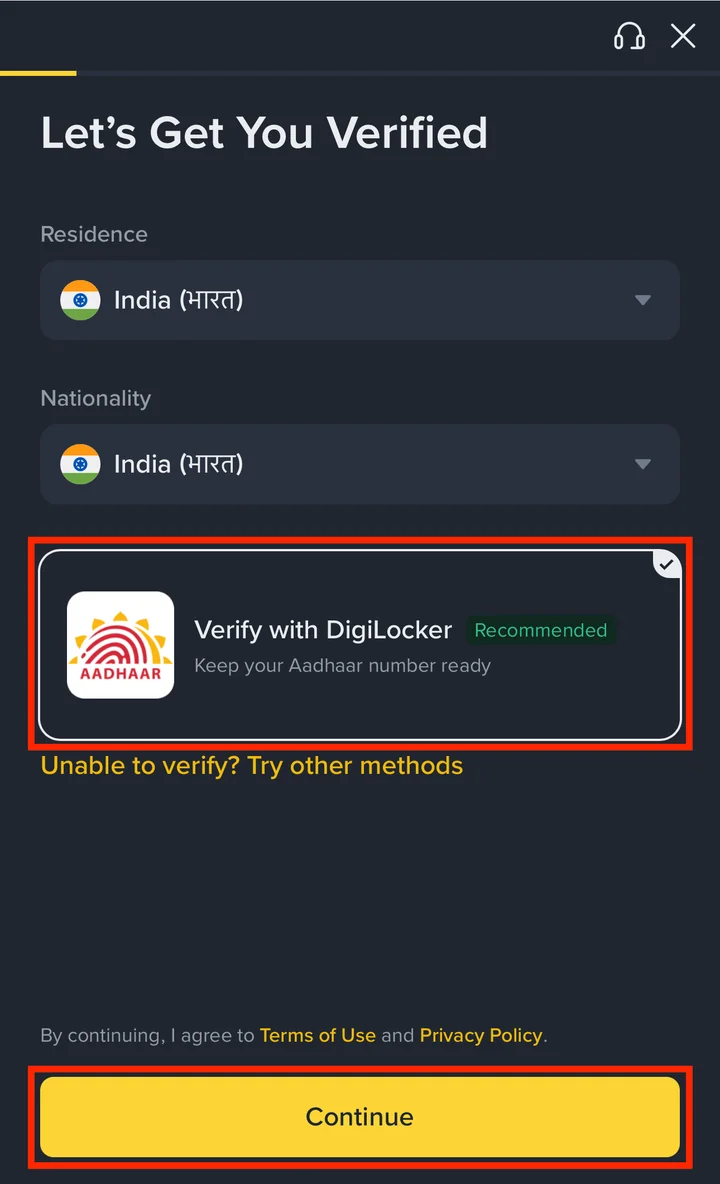
Check that Residence and Nationality both show India. Keep Verify with DigiLocker (marked Recommended) selected and tap Continue.
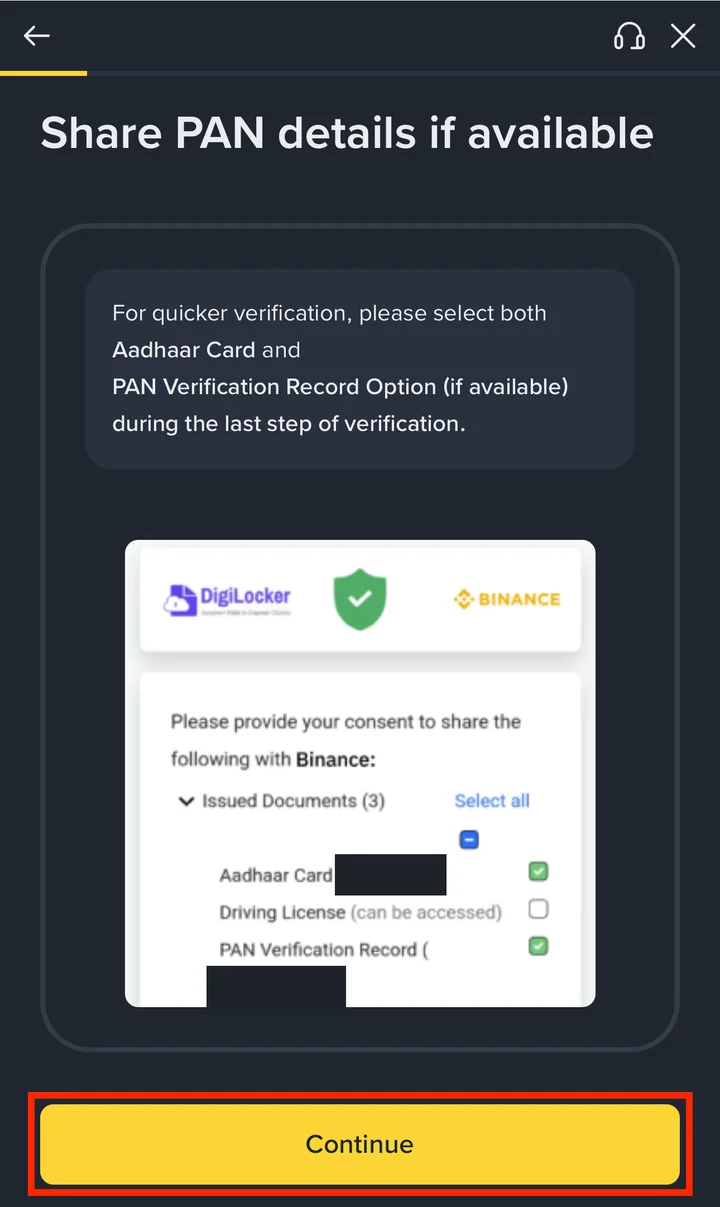
The next screen says Share PAN details if available. Tap Continue. Later, at the last step in DigiLocker, tick both Aadhaar Card and PAN Verification Record (if you see it).
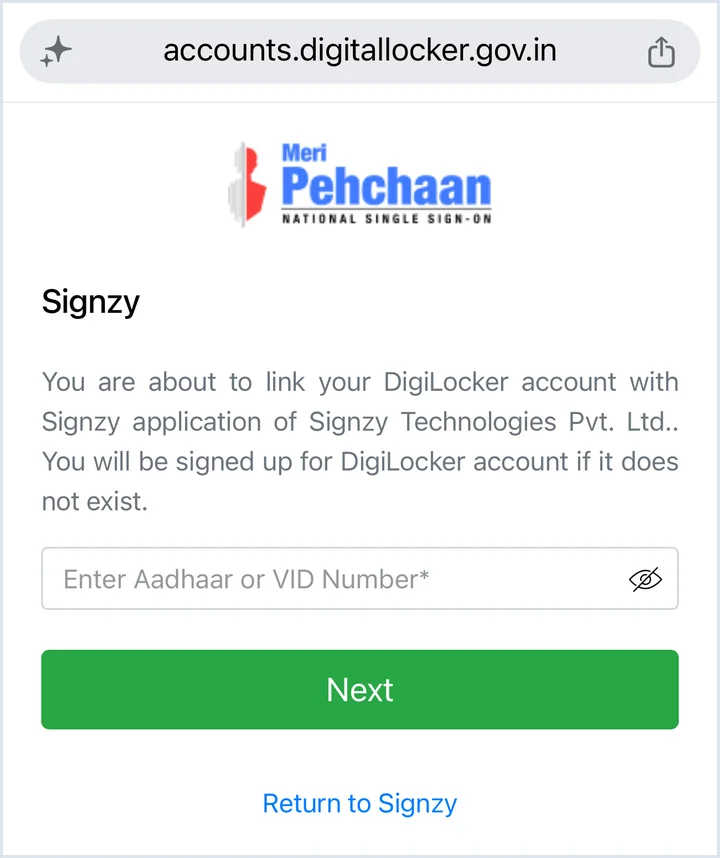
The DigiLocker sign-in page opens. Check that the address is accounts.digitallocker.gov.in, enter your Aadhaar or VID number and tap Next. (The page mentions Signzy. In my case it opened straight from Binance's KYC screen.) Follow the screens until you are back on Binance.
After DigiLocker, follow what Binance shows next. If it asks for ID photos or a face scan, they work the same way as STEP 4 to 9 in section 3.
If DigiLocker doesn't work for you, tap Unable to verify? Try other methods on the first KYC screen. Choose Aadhaar Card or Voter ID, Passport or Driver's License, tap Continue, and photograph it as in STEP 4 of section 3.
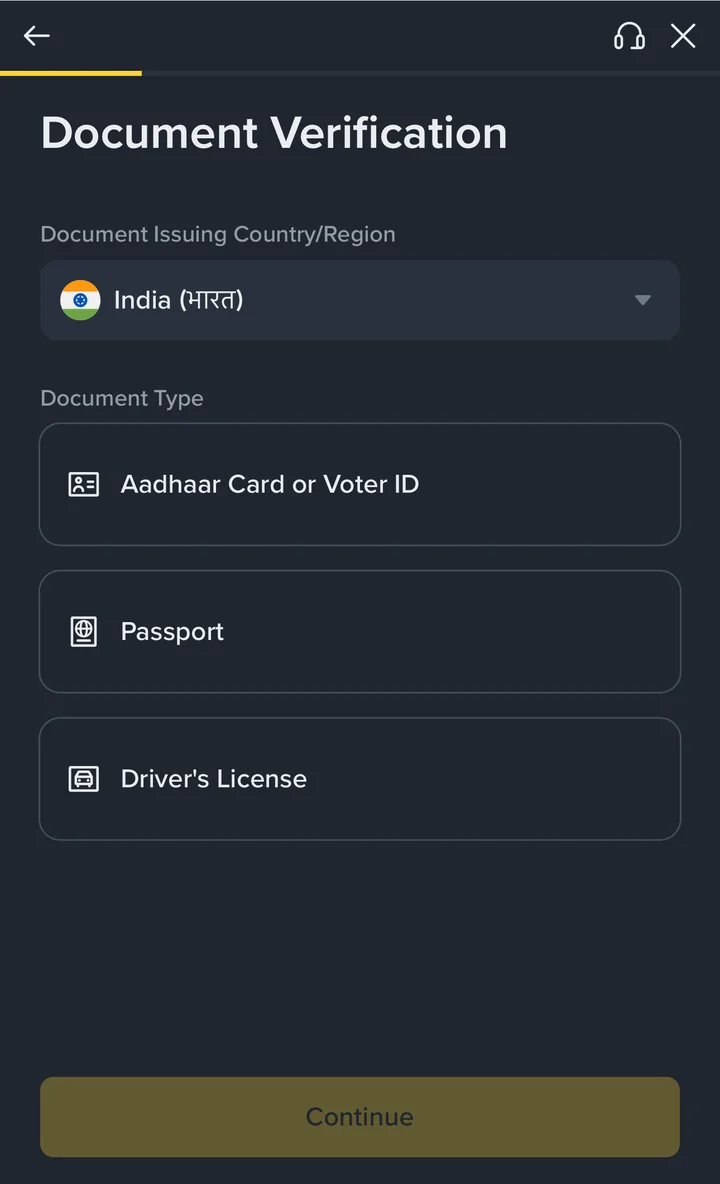
Tap Take Pictures to photograph your ID with the camera, or Upload Photos to use photos already on your phone. Then tap Continue. This guide follows Take Pictures.
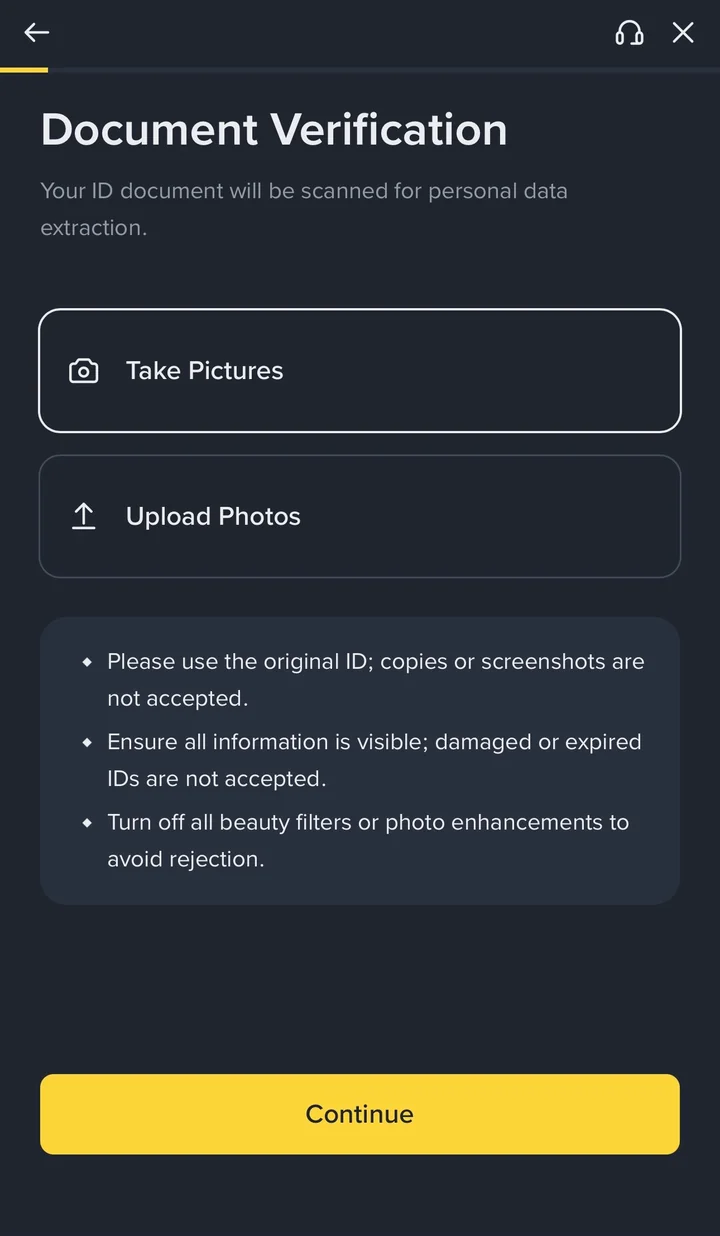
When your phone asks for camera access, tap Allow. Then tap Start scanning.
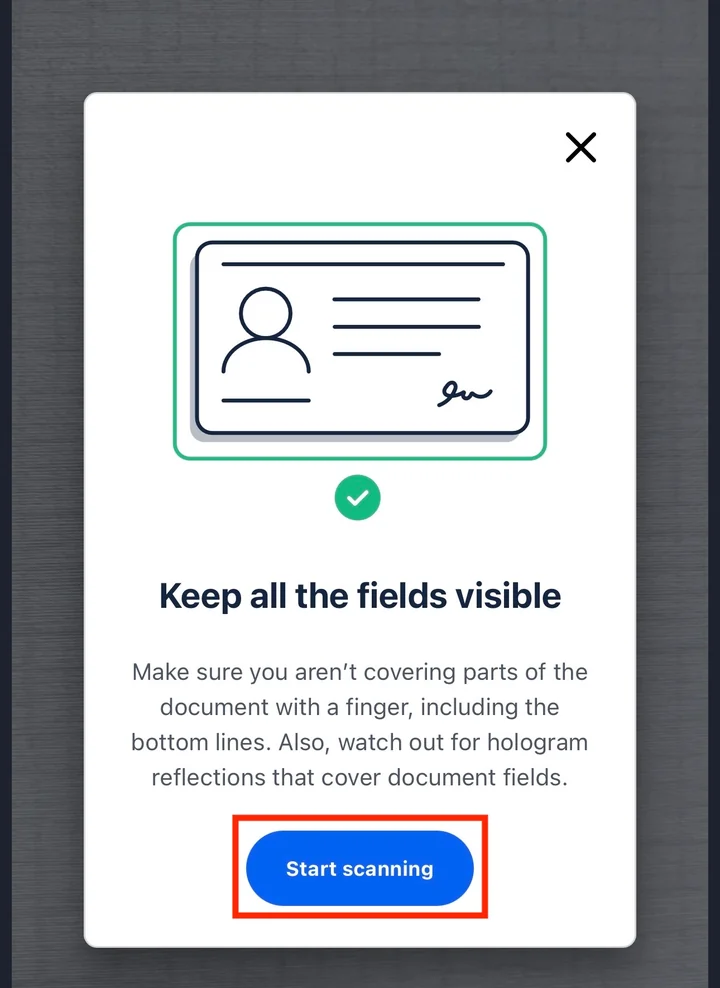
Take a photo of the front of your ID so it fills the frame. When the screen asks for the back, photograph it the same way.
▣ If the ID photo keeps failing
In my experience, glare from a lamp or ceiling light made the scan fail again and again. A finger over any part of the ID also makes it fail. Find a spot with no glare and keep every field visible.
Next, Binance checks that your face matches the photo on your ID. Read the tips on the screen, then tap Continue.
The scan records your background as well as your face, so check what is behind you first.
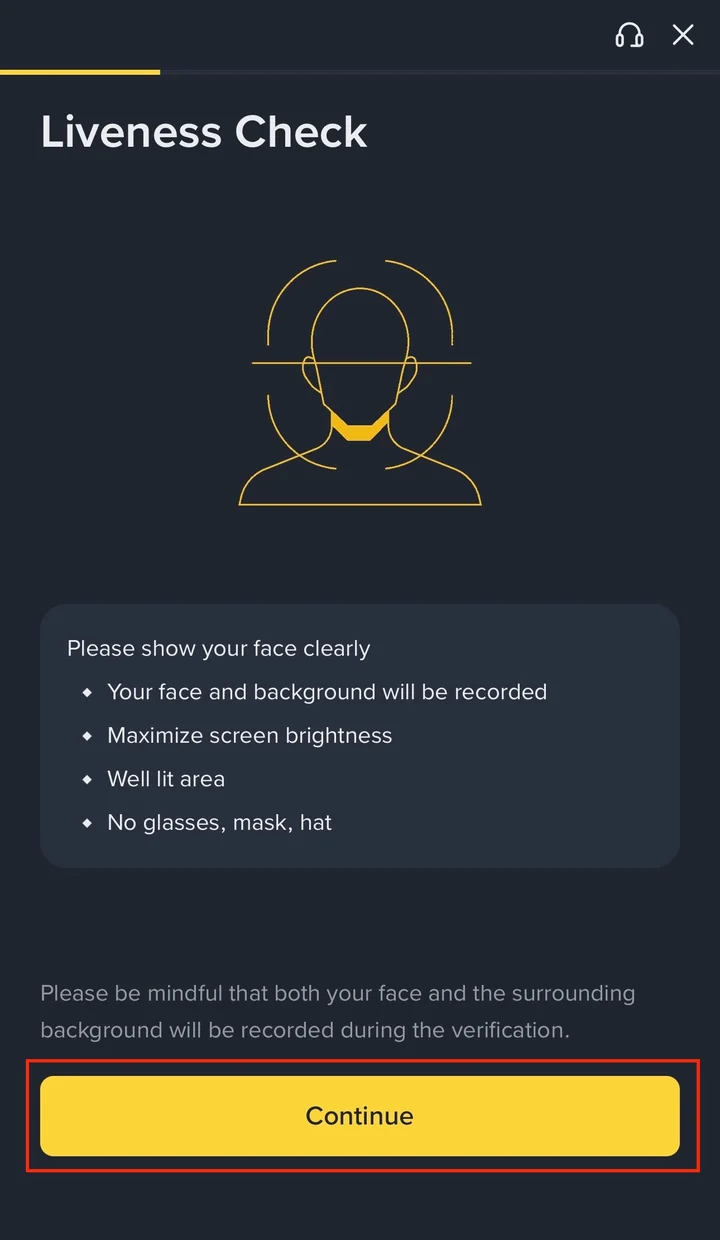
Tap Start now. On an iPhone, tap Allow when the browser asks for motion and orientation access.
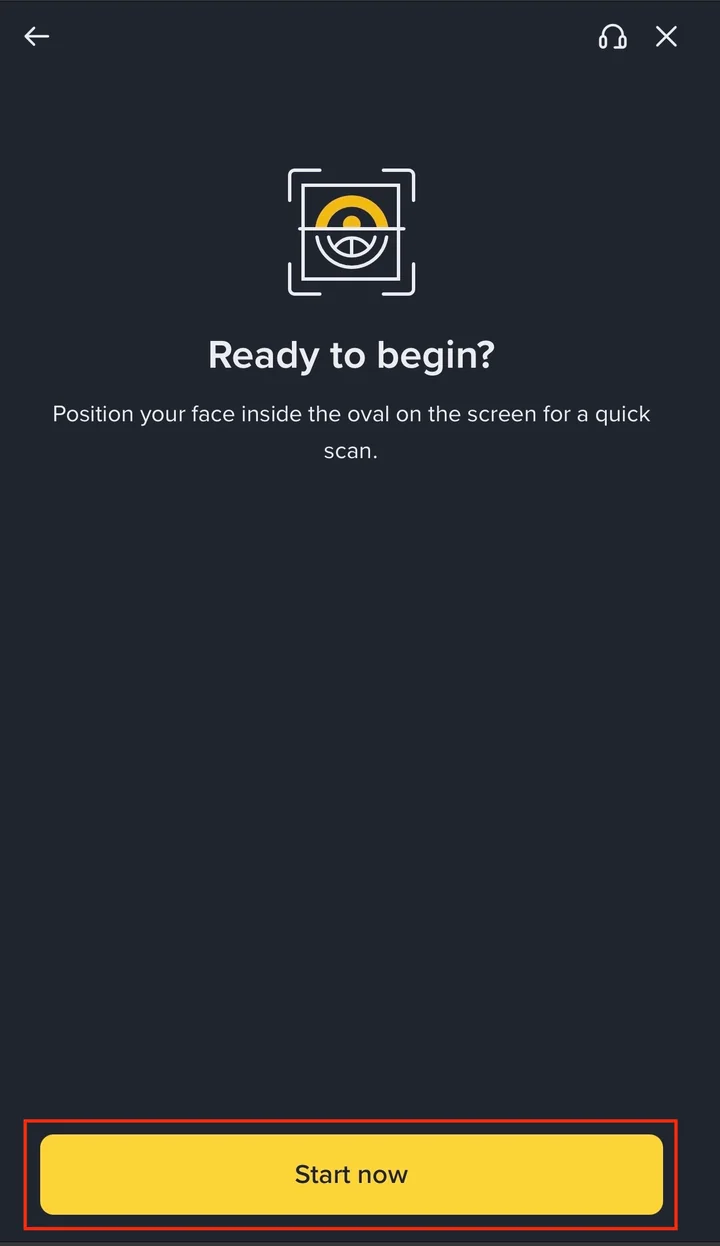
Fit your face inside the oval and follow the prompts.
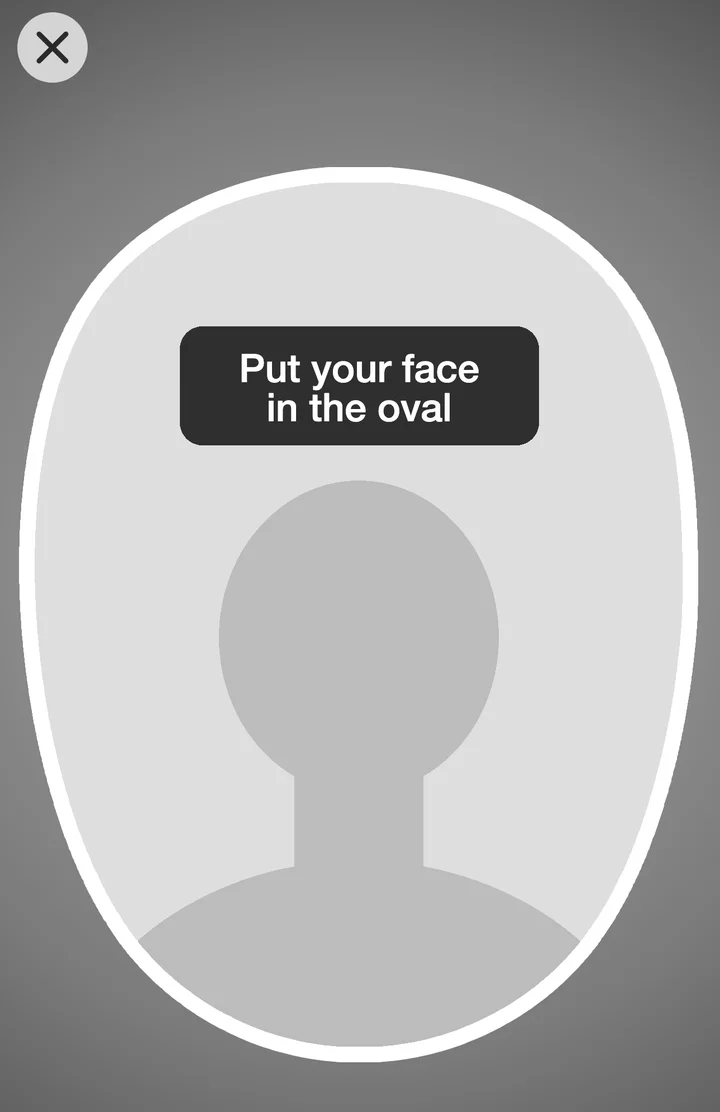
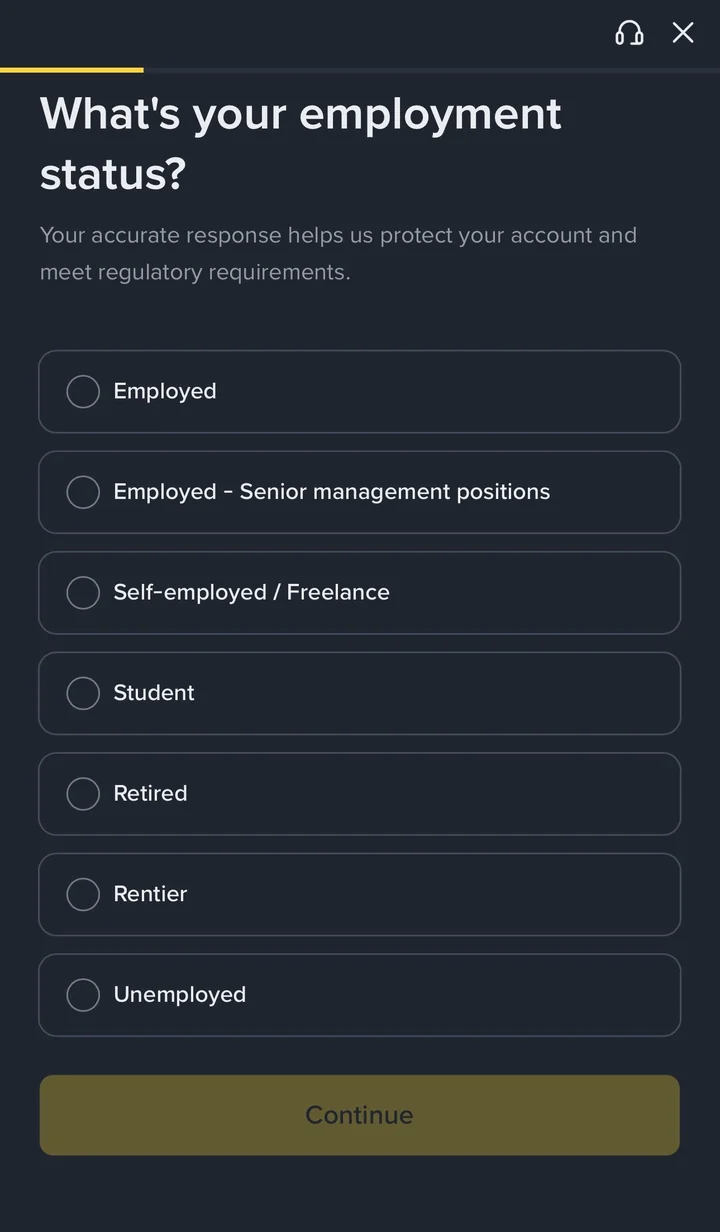
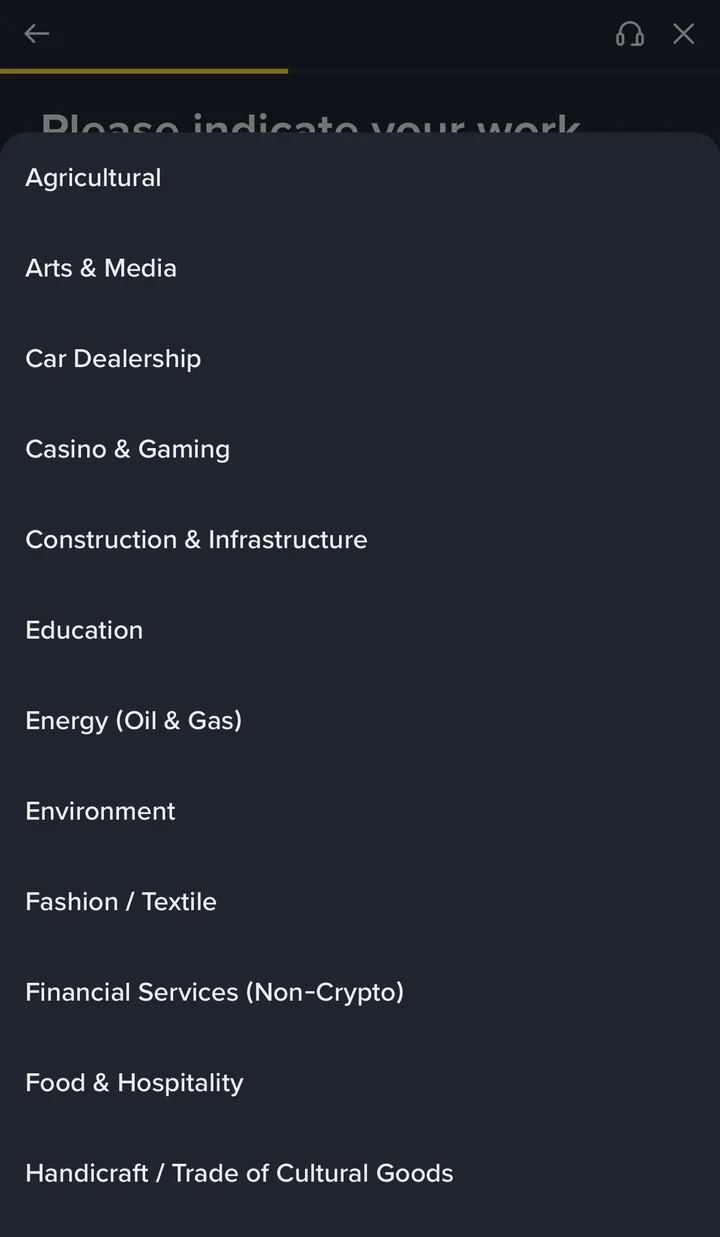
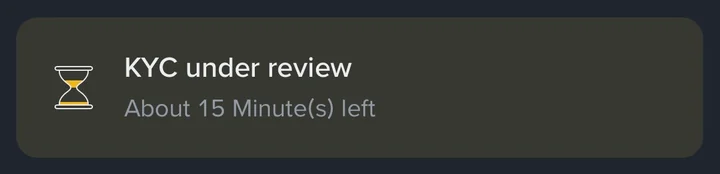
When the face scan succeeds, Binance starts reviewing your ID and face. While you wait, it asks about your employment status, your work industry and your source of income.
The screen says accurate answers help protect your account and meet regulatory requirements, so pick the answer that fits you best and tap Continue.
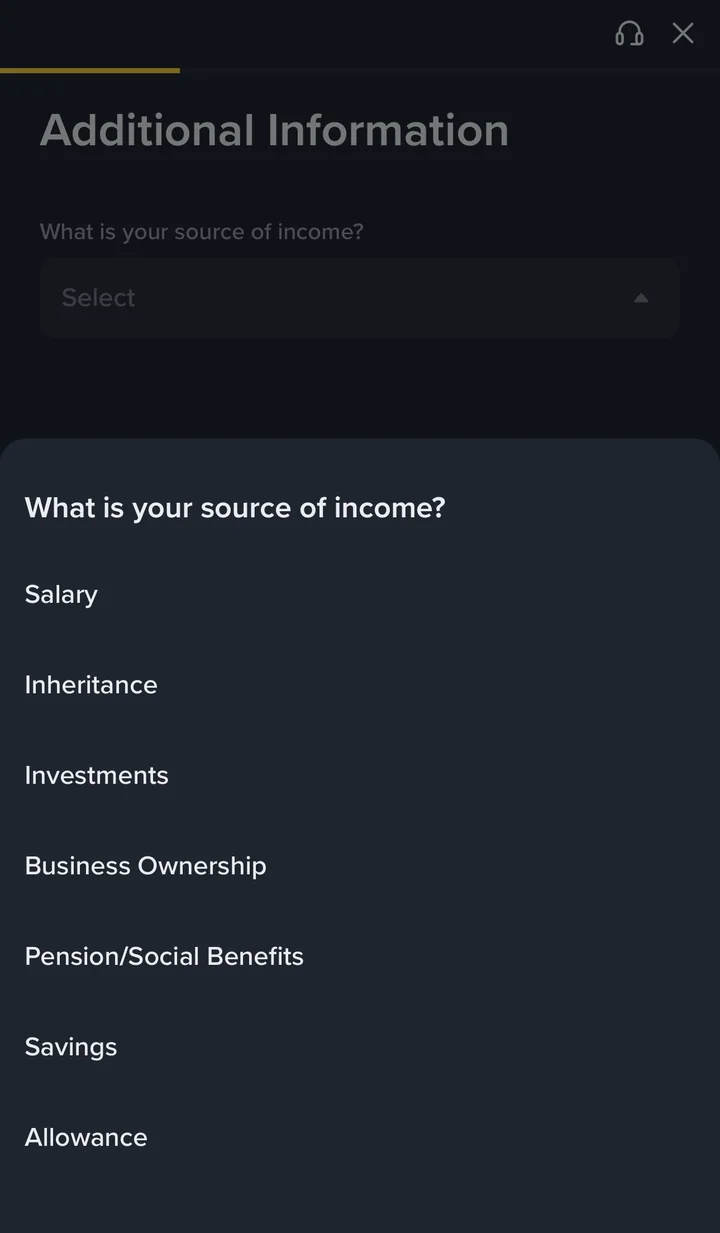
A screen shows that your KYC is under review. You may also see an offer for another product here. You don't need it for this guide, so close it with the X at the top right.
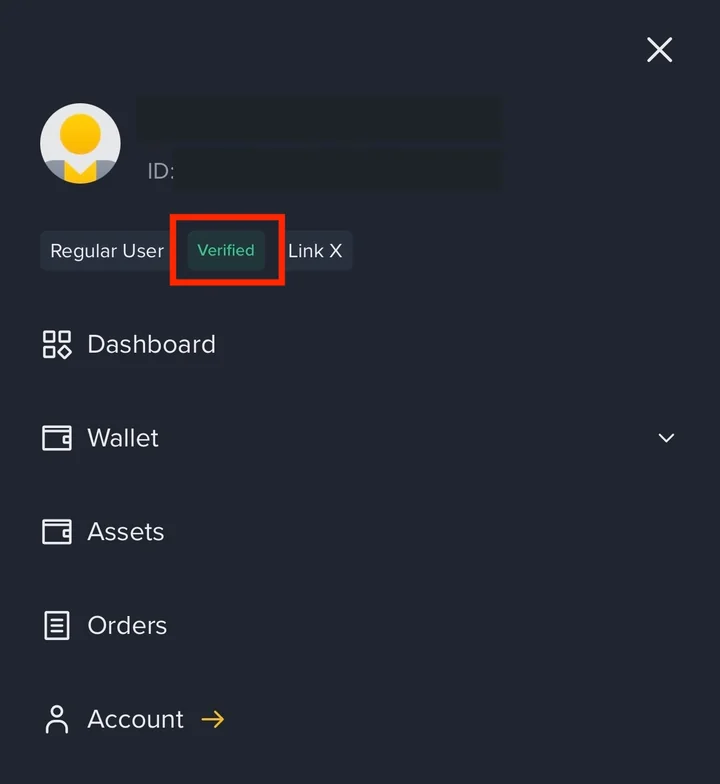
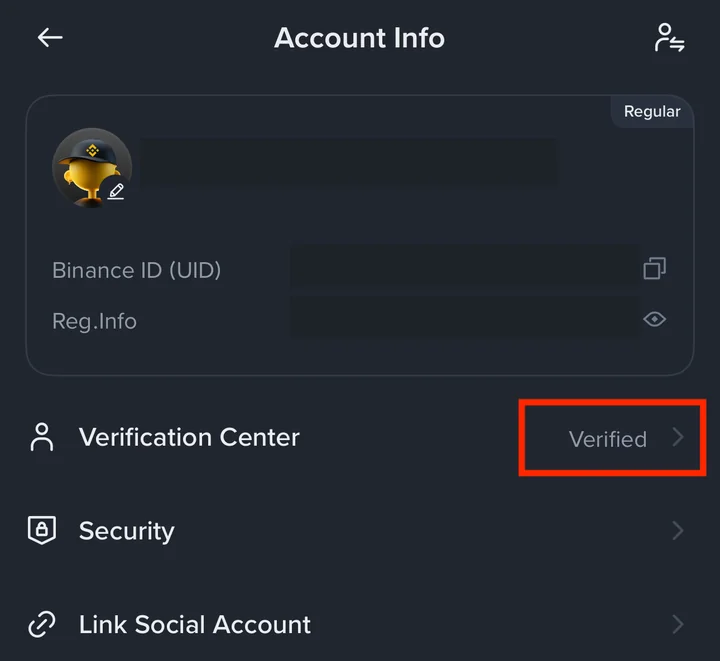
When KYC succeeds, Verified appears in green under Account → Identification, and under your name when you tap the profile icon. In the app, open Account Info: Verification Center shows Verified.
▣ If it says Unverified
Open Account and read the reason Binance gives. Don't worry: fix the problem (for example, retake a blurry ID photo) and try again.
KYC is done. Your account is now verified.
4. Binance sign-up FAQ
Does it cost anything to sign up on Binance?
No. Signing up and completing KYC are both free.
What does the referral code MAXFEEBACK give me?
A 20% commission rebate: 20% of the trading fees you pay come back to you. You can check the 20% commission rebate on the sign-up screen once the code is linked.
Can I add the referral code after I sign up?
Usually not. Binance allows linking a referral code after sign-up only in limited cases, so add it while you create your account.
Can I sign up with Google, Apple or Telegram instead of email?
Yes. The sign-up page on the website also offers Continue with Google, Continue with Apple and Continue with Telegram (the app shows Google and Apple). Whichever you choose, make sure the referral code is linked before you finish.
Your Binance account is now created and verified, and you can start trading. If you'd like to make it even more secure, the next guide covers two-factor authentication (2FA) with an authenticator app.
Well done!