Hi, this is CoinFirstStep. This guide walks you through your first spot trade in the Binance app: buying BTC with USDT and selling it back, once with a limit order and once with a market order.
The short answer: tap Trade, choose Spot and a pair such as BTC/USDT, pick Buy, choose Limit or Market, enter the amount and tap Buy BTC. A limit order waits under Open Orders until it fills, and every finished order shows in Order History. Selling works the same way on the Sell tab.
20% commission rebate
Referral link: you get a 20% commission rebate on your trading fees (disclosure).
At a glance
| What you need | A verified Binance account and USDT in your Spot wallet |
|---|---|
| Where | Binance app: Trade → Spot |
| Limit order | You set the price. It fills at that price or better, or it waits |
| Market order | It fills right away at the best price available |
1. Before you trade: what spot trading is and what you need
Spot trading on Binance means buying a coin outright and owning it. When you buy BTC with USDT on the spot market, the BTC goes into your Spot wallet and stays yours until you sell it or move it. There's no borrowing and no leverage.
You need two things: a verified account (see how to verify your identity (KYC)) and some USDT in your Spot wallet. A small amount is enough to learn where each button is.
Binance gives you two basic order types, and this guide uses both.
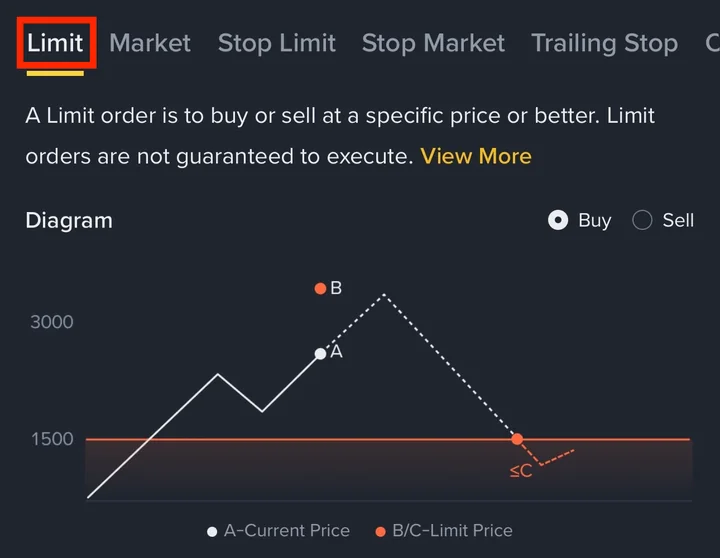
Limit order: you choose the price. Binance's help screen in the app says a limit order buys or sells at a specific price or better, and it isn't guaranteed to fill.
Market order: you only choose how much. It fills right away at the best available price on the order book, and the final price can be a little different from the price you saw.
Crypto prices can move fast in either direction, and a coin you buy can be worth less when you sell it. This is a how-to guide, not investment advice.
2. How to buy and sell with a limit order
2-1. Buy BTC with a limit order
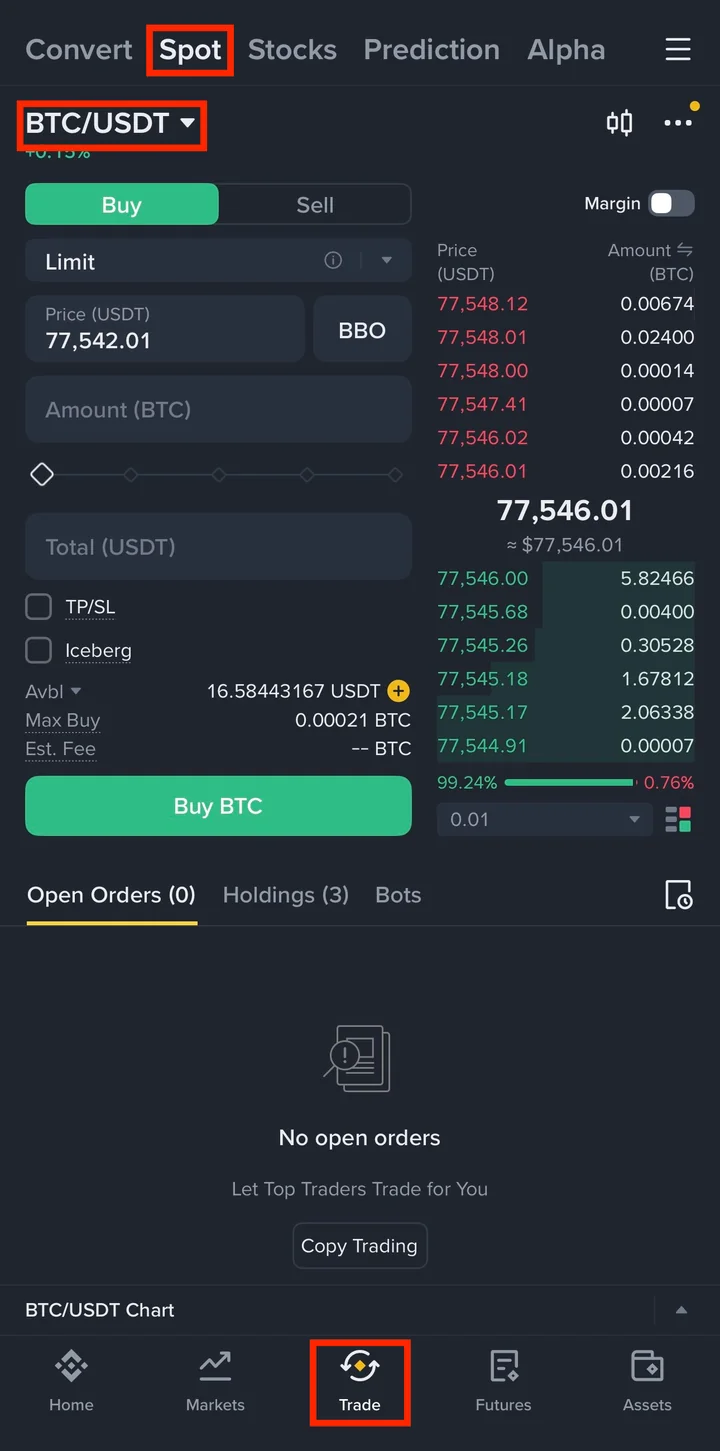
Tap Trade at the bottom, then Spot at the top. The pair you're trading shows at the top left, here BTC/USDT. Tap it to choose another pair.
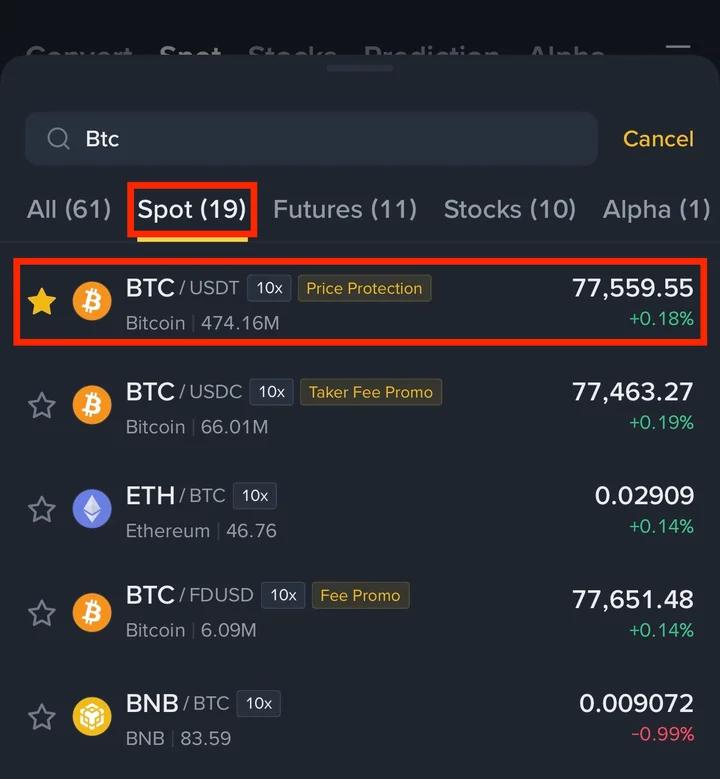
Type the coin's name in the search box, open the Spot tab and tap the pair. For a first trade, pick a pair that ends in /USDT, so you pay with the USDT you already have.
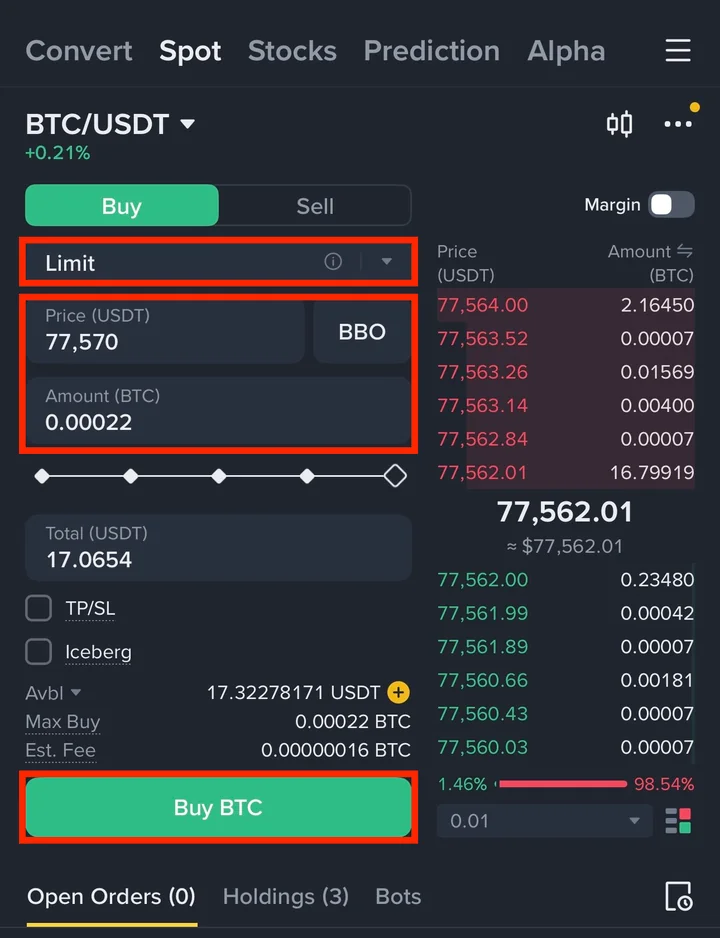
Make sure Buy is selected (green) and the order type says Limit. Enter the Price you want to pay for one BTC and the Amount of BTC. The Total in USDT fills in by itself. Then tap Buy BTC.
Below the boxes, Avbl shows the USDT you can use.
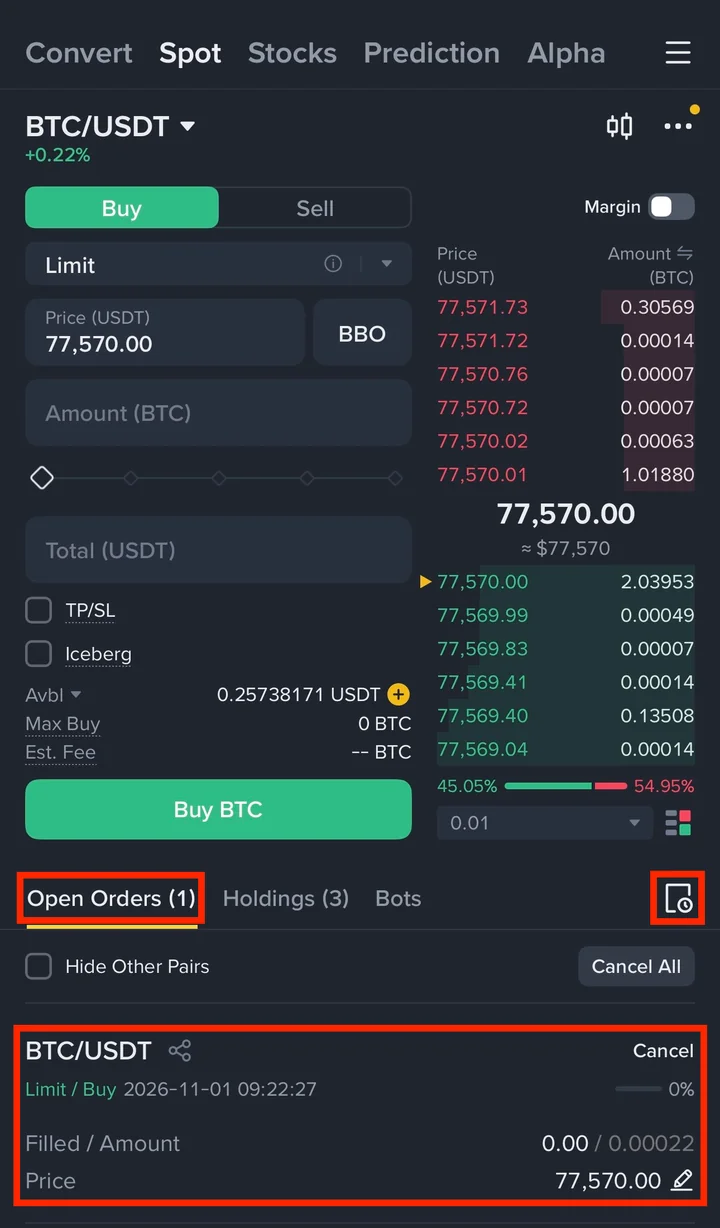
The order appears under Open Orders and waits there until the market reaches your price. Filled / Amount shows how much has been bought so far. To drop the order, tap Cancel.
▣ If your limit order doesn't fill
A buy order only fills when someone sells at your price or lower. If the price moves up and away from it, your order keeps waiting.
To try a different price, cancel the order and place a new one.
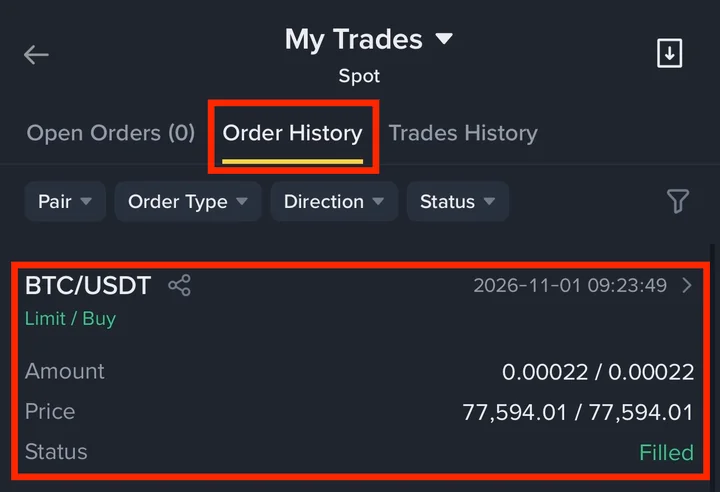
Once the order fills, it leaves Open Orders. Tap the history icon at the right of the Open Orders row. On the My Trades screen, open Order History.
My first limit buy at 77,570 didn't fill because the price went up. I cancelled it and placed a new one at 77,594.01, and that one filled. Order History shows it as Filled.
2-2. Sell BTC with a limit order
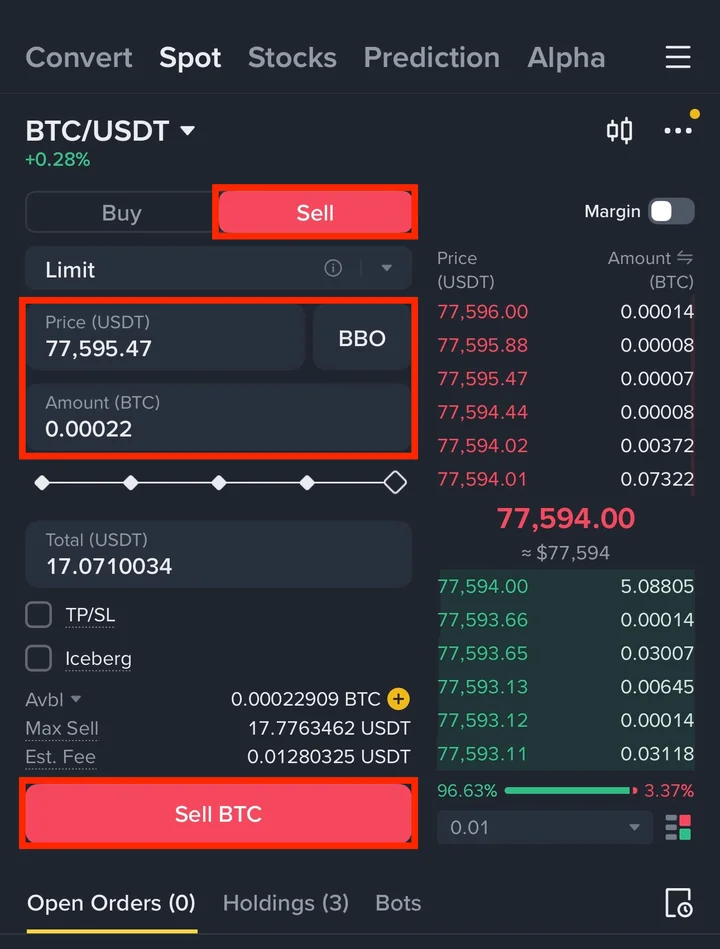
On the same screen, tap Sell (red). Keep Limit, enter the Price you want to sell at and the Amount of BTC, then tap Sell BTC. Avbl under the form now shows your BTC instead of USDT.
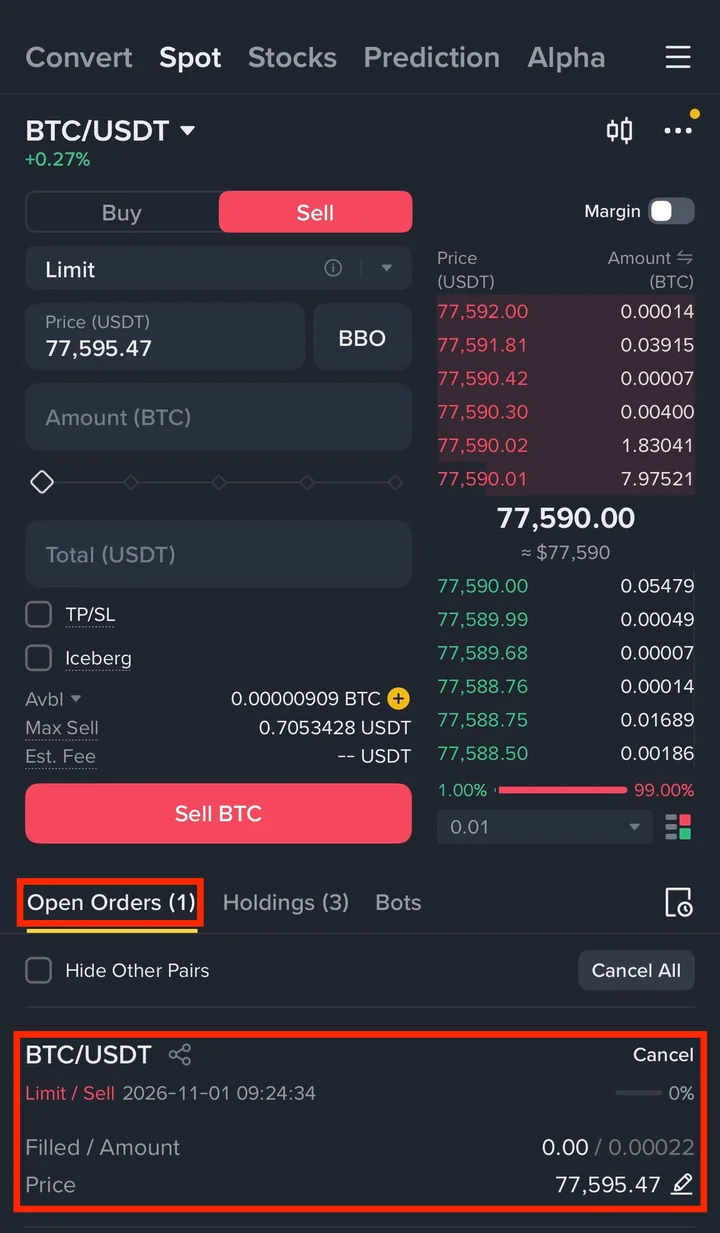
The sell order waits under Open Orders in the same way, marked Limit / Sell.
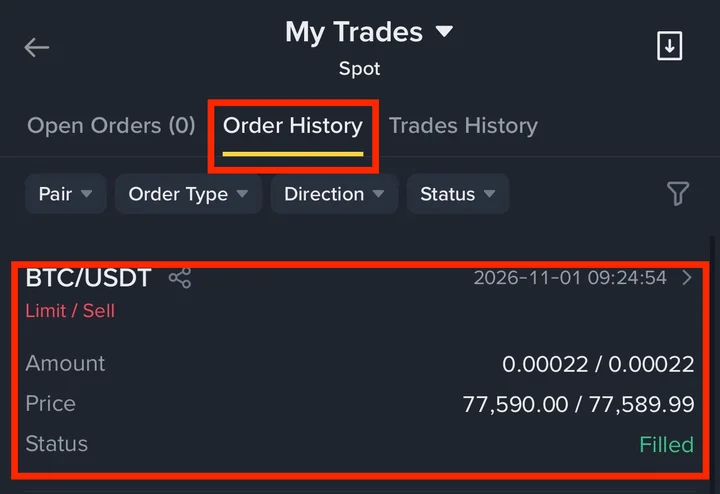
When it fills, check it in Order History. The Price line shows two numbers: the price it filled at, then your order price.
My first sell order at 77,595.47 didn't fill either, so I cancelled it and placed a new one at 77,589.99. It filled at 77,590.00, 0.01 USDT better than my price. That's what "at your price or better" means.
3. How to buy and sell with a market order
3-1. Buy BTC with a market order
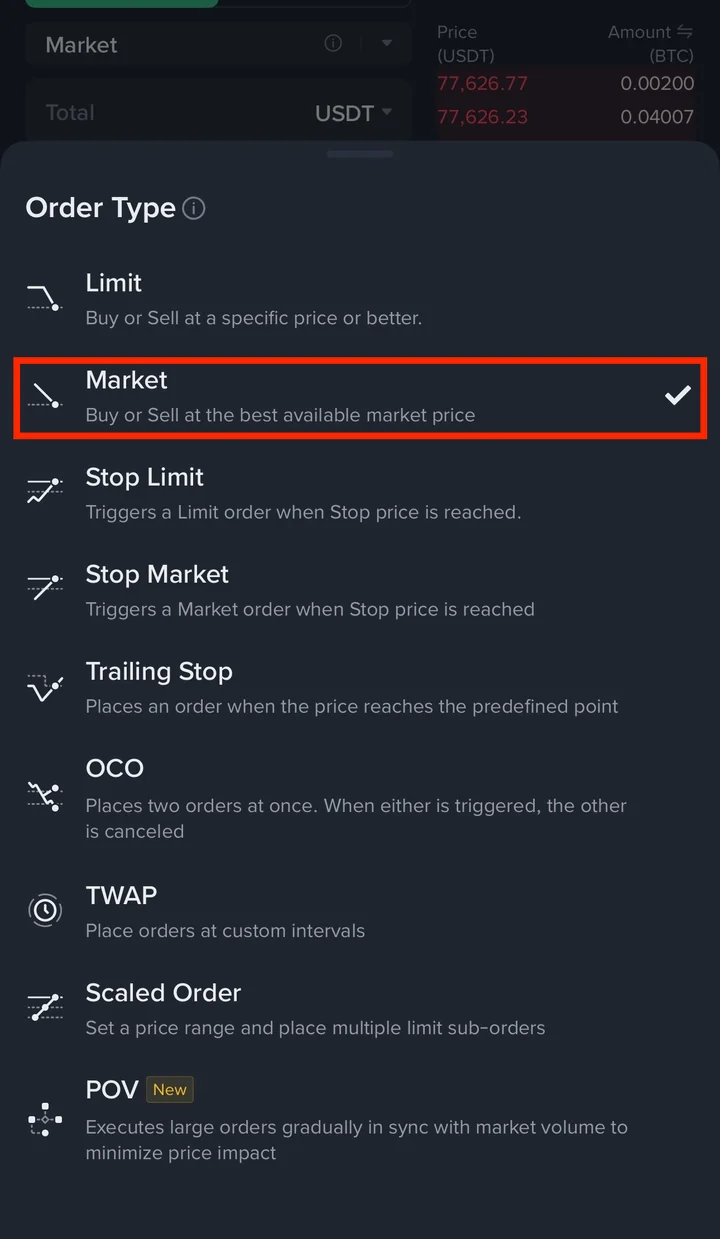
Tap the order type box (it says Limit) and choose Market from the Order Type list. The list also has Stop Limit, Stop Market, Trailing Stop, OCO and a few more, but you don't need them for a first trade.
To see what an order type does, tap the ⓘ icon in the order type box. Binance opens a short explanation with a diagram for each type, like this one for a limit order.
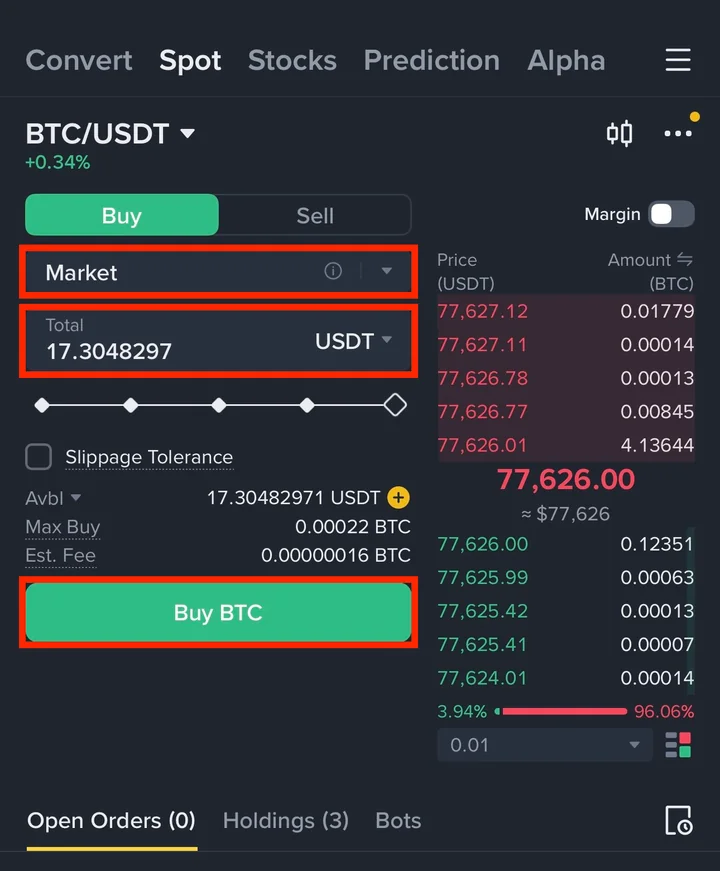
With Buy selected, the market form asks for a Total: how much USDT you want to spend. There's no price box, because the order takes the best price available. Enter the total and tap Buy BTC.
If you enter your whole available balance, the order buys the amount shown in Max Buy.
A market order takes the best offers on the order book first. If your order is bigger than what's offered at that price, the rest fills at the next prices. So depending on the size of your order, you can end up buying higher, or selling lower, than the price you saw.
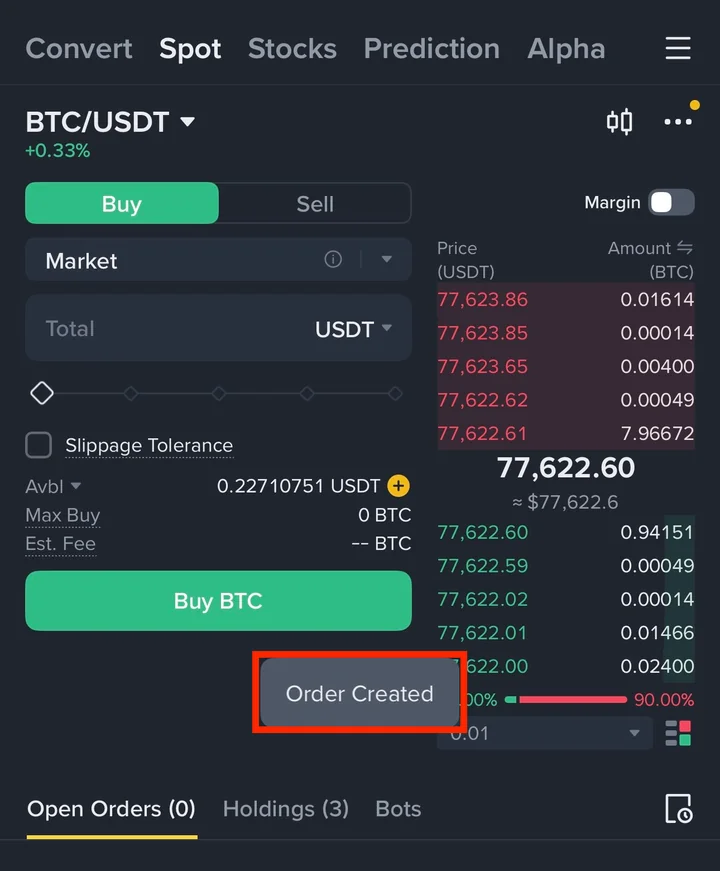
An Order Created message pops up. A market order fills right away, so nothing waits under Open Orders.
My Avbl dropped to less than 1 USDT, the small amount left after the buy.
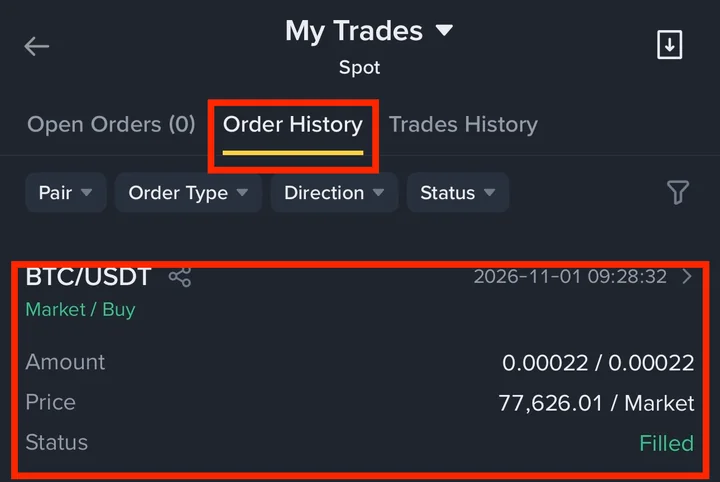
In Order History, a market order shows as Market / Buy, and the Price line reads the filled price followed by Market.
3-2. Sell BTC with a market order
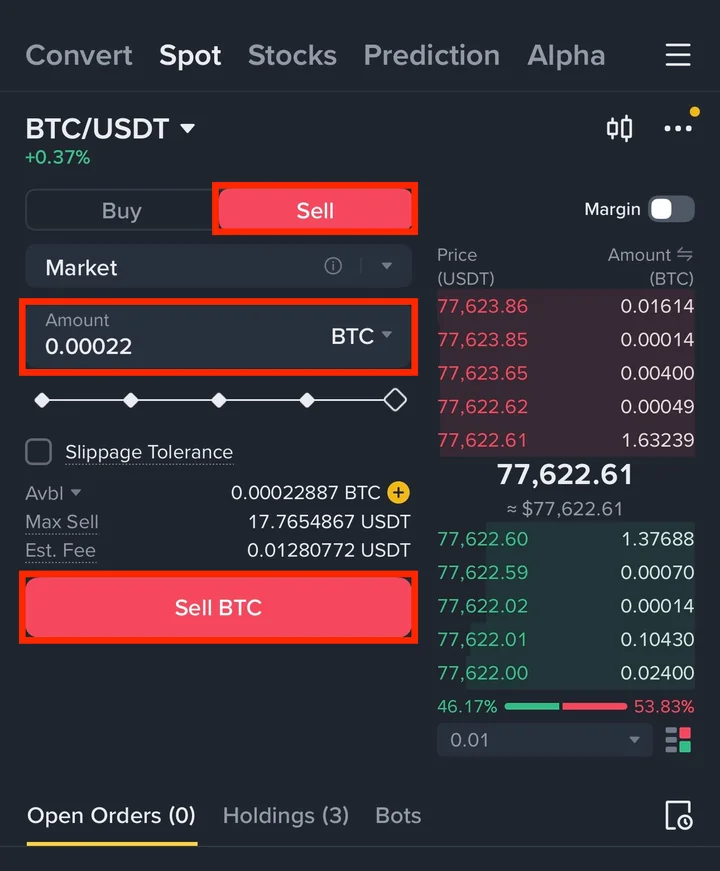
Tap Sell, keep Market, enter the Amount of BTC to sell and tap Sell BTC.
Check the order in Order History. My market sell shows Market / Sell.
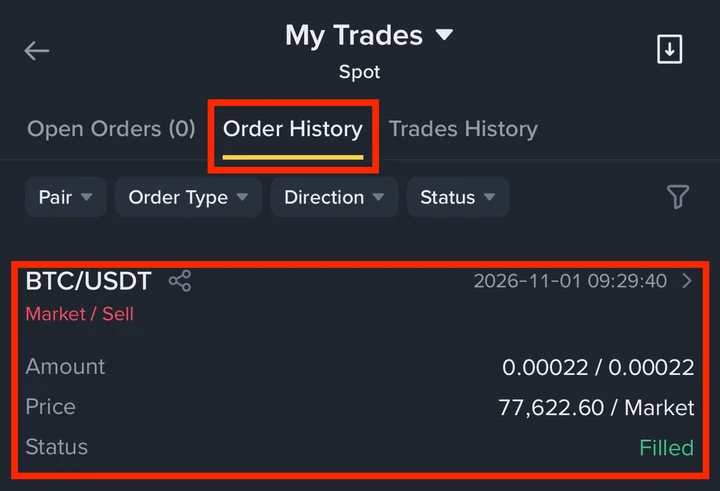
My market buy filled at 77,626.01 and the sell about a minute later at 77,622.60. Even when the price barely moves, a quick buy and sell costs a little, because of the gap between the buy and sell prices.
4. Check your coins in Assets
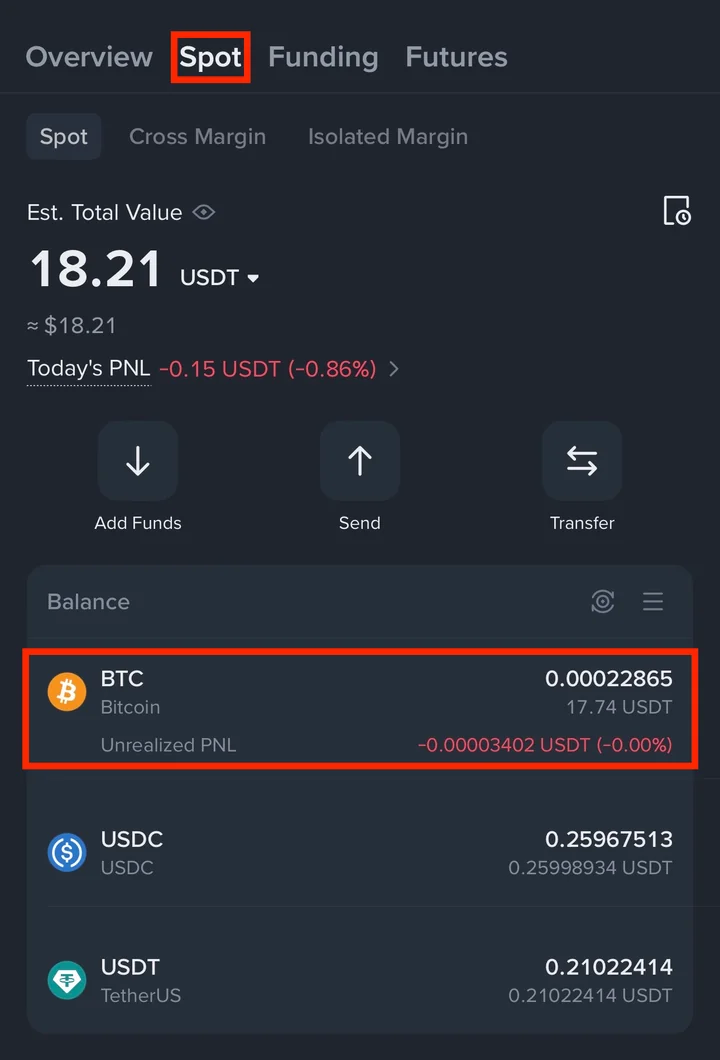
Tap Assets at the bottom right and open the Spot tab. Coins you bought on the spot market are listed under Balance, with their value in USDT.
Each coin also has an Unrealized PNL line: the gain or loss on that coin at the current price. At the top, Est. Total Value adds up your Spot wallet.
You can also check from the trade screen: the Holdings tab next to Open Orders lists the coins you hold.
5. Binance spot trading FAQ
What's the difference between Amount and Total?
Amount is how much of the coin you buy or sell, in BTC here. Total is its value in USDT. On a limit order, Total is worked out from Price × Amount. On a market order, Binance's help screen says you can order by either one.
Can I cancel an order?
A limit order that hasn't filled can be cancelled under Open Orders with Cancel, or all at once with Cancel All. A market order fills right away, so there's usually nothing left to cancel.
That's it: you've bought and sold BTC on the Binance spot market with a limit order and a market order, and you know where to find the records. If you haven't protected your account yet, set up two-factor authentication (2FA). To learn how the Futures wallet works, see how to move USDT from Spot to Futures.
Well done!